Friday, June 24, 2011

Simple canvas-based Ball game

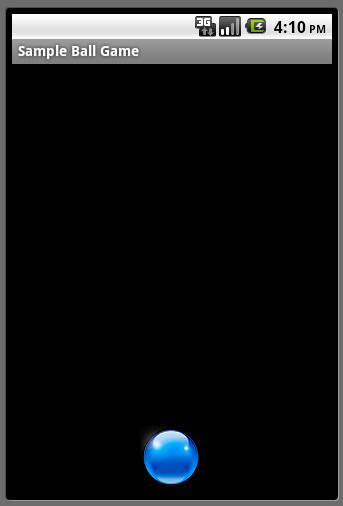
This is a small project that does this.

"On your phone's screen, you will have a ball lying at the bottom part, in the middle. Once you touch any part of the screen, the ball starts moving in that direction. It continues to move till it hits one of the walls, bounces off the wall, and keeps moving. Depending on the point of touch, the ball will hit the left/right walls a few times, before it eventually escapes out of the view when it crosses the upper boundary."
 Not super fancy stuff or algorithms. You can find the source code here.

Saturday, June 4, 2011

Streaming Radio Stations on Android

Streaming radio stations or audio files hosted on streaming servers on Android is pretty straight-forward. But then, Android has it's limitations. It won't stream just any file or radio station. In this post, I would not be specifying the formats or protocols that Android supports. Rather, this example is just a walk through of how the MediaPlayer class should be used to stream audio files/radio stations.

For an example here, I have used a SHOUTcast radio station. The URL for the source is:
http://shoutcast2.omroep.nl:8104/

The accompanying sample project contains a ProgressBar, two Buttons (for playing and stopping the MediaPlayer).

Before running the example, one should look into the documentation of the MediaPlayer class. A look at the state diagram would perhaps help you clear to understand how it actually works.

To initialize the MediaPlayer, you need a few lines of code. There you go:
MediaPlayer player = new MediaPlayer();
player.setDataSource("http://shoutcast2.omroep.nl:8104/");
Now that the MediaPlayer object is initialized, you are ready to start streaming. Ok, not actually. You will need to issue the MediaPlayer's prepare command. There are 2 variations of this.

  1. prepare(): This is a synchronous call, which is blocked until the MediaPlayer object gets into the prepared state. This is okay if you are trying to play local files that would take the MediaPlayer longer, else your main thread will be blocked.
  2. prepareAsync(): This is, as the name suggests, an asynchronous call. It returns immediately. But, that obvisouly, doesn't mean that the MediaPlayer is prepared yet. You will still have to wait for it to get into the prepared state, but since this method will not block your main thread, you can use this method when you are trying to stream some content from somewhere else. You will get a callback, when the MediaPlayer is ready through onPrepared(MediaPlayer mp) method, and then, the playing can start.
So, for our example, the best choice would be:
player.prepareAsync();
You need to attach a listener to the MediaPlayer to receive the callback when it is prepared. This is the code for that.
player.setOnPreparedListener(new OnPreparedListener(){
            public void onPrepared(MediaPlayer mp) {
                     player.start();
            }
 
});
Once, it goes into the prepared state, you can now start playing. Simple???? Yes, of course. Just to wrap it up, to stop the MediaPlayer, you need to call the stop() method.

There are several other helper methods which lets you query the progress or status of the player. Jump to the docs page and you will find more information on them. You can checkout the source code here.

Project source for the new Eclipse + Android tool chain. Download here.

NOTE: This sample project is tested on Gingerbread(2.3) and should work on Froyo(2.2) and above.

Thursday, May 5, 2011

Sensors to Handle on Nexus S


So many sensors to sense!!! Hmm, I don't yet know if there are appropriate APIs available yet on Gingerbread to access all these sensors. Got to read up now.

Saturday, April 9, 2011

Using Custom fonts on Android

I had to do this for a project that I am working on, and I felt that it wasn't possible to achieve this. Well, there are several examples on the internet regarding this and nothing seemed to be working for me. So, in this post, we will see how to use custom fonts for your application on Android.

Few things before we start off:
  • Not all fonts are compatible with Android
  • You need to package the ttf files with your apk
  • It's obviously a little bit of extra work
So for this example, we have a TextView and a Button with different fonts. To be able to use your custom font everywhere, ie, on all the TextView and Button widgets in your app, you will have to extend these classes to create your own TextView and Button classes. I have named them as MyTextView and MyButton. And then, I can use these buttons in my layout xml files, with the fully-qualified name of my custom classes.

<?xml version="1.0" encoding="utf-8"?>
<LinearLayout xmlns:android="http://schemas.android.com/apk/res/android"
    android:orientation="vertical" android:layout_width="fill_parent"
    android:layout_height="fill_parent">
    <com.beanie.samples.customfont.MyTextView
        android:layout_marginTop="10dip" android:id="@+id/textView"
        android:layout_width="fill_parent" android:layout_height="wrap_content"
        android:text="@string/hello" android:textSize="20sp"></com.beanie.samples.customfont.MyTextView>

    <com.beanie.samples.customfont.MyButton
        android:layout_marginTop="10dip" android:id="@+id/textView"
        android:layout_width="fill_parent" android:layout_height="wrap_content"
        android:text="@string/hello" android:textSize="20sp"></com.beanie.samples.customfont.MyButton>
</LinearLayout>
In both these classes, we have a method called init() which is called from all the constructors. The method is just 3 line long.
        if (!isInEditMode()) {
                  Typeface tf = Typeface.createFromAsset(getContext().getAssets(), "fonts/ds_digib.ttf");
                  setTypeface(tf);
        }
Simple!!! You might notice that there is an if condition. This is not required, but it does help when you are preparing your layouts on eclipse, and you need to keep checking if everything's fine. This method, isInEditMode() returns true while eclipses tries to render the view from the XML.

This is what the documentation says:
Indicates whether this View is currently in edit mode. A View is usually in edit mode when displayed within a developer tool. For instance, if this View is being drawn by a visual user interface builder, this method should return true. Subclasses should check the return value of this method to provide different behaviors if their normal behavior might interfere with the host environment. For instance: the class spawns a thread in its constructor, the drawing code relies on device-specific features, etc. This method is usually checked in the drawing code of custom widgets.
If you don't put this condition, the layout editor will complain about not being able to set the TypeFace. So, in the layout editor, you will see your TextView and Button widgets with the default font. But, when you run your app on an emulator or a device, you can see the goodness of your custom fonts.

The source code for the sample project can be found here. You can find 3 different fonts (ttf file) in the assets folder to play with.
Monday, April 4, 2011

Inverted Android Button

Nothing complex. Just a few lines of code to invert your button. A horizontal flip of 180 degrees is pretty simple to achieve. If you want it with a specific angle, it might be a bit tricky.

Lets start with a creating a custom button class that extends the android Button class. Name it as InvertedButton.java.

You will need to override it's onDraw() method to rotate the canvas, so that before any drawing is done, you rotate it by 180 degrees. To make the text-alignment perfect, you will also need to do a few calculations.
    @Override
    protected void onDraw(Canvas canvas) {
        int left = getPaddingLeft();
        int top = getPaddingTop();
        int right = getPaddingRight();
        int bottom = getPaddingBottom();
        int width = getWidth() - left - right;
        int height = getHeight() - top - bottom;
       
        int saveCount = canvas.getSaveCount();
        canvas.translate(left + width / 2, top + height / 2);
        canvas.rotate(-180);
        canvas.translate((-width / 2)-left, (-height / 2)-top);
        canvas.restoreToCount(saveCount);
       
        super.onDraw(canvas);

    }
There you go. You can now add this button anywhere in your XML layouts and you will always get an inverted button.
<?xml version="1.0" encoding="utf-8"?>
<LinearLayout xmlns:android="http://schemas.android.com/apk/res/android"
    android:orientation="vertical" android:layout_width="fill_parent"
    android:layout_height="fill_parent">
    <Button android:text="Button" android:id="@+id/button1"
        android:layout_width="wrap_content" android:layout_height="wrap_content"
        android:layout_gravity="center_horizontal|top" android:textStyle="bold"></Button>
    <com.beanie.examples.invertedbutton.InvertedButton
        android:text="Button" android:id="@+id/button2" android:layout_width="wrap_content"
        android:layout_height="wrap_content" android:layout_gravity="center_horizontal|bottom"
        android:textStyle="bold"></com.beanie.examples.invertedbutton.InvertedButton>
</LinearLayout>

You can find the source code here. Happy coding!!!!