Showing posts with label examples. Show all posts

Friday, February 3, 2012

Sending SMS on Android and tracking it

Lets look at how to send an SMS. It's pretty simple though. A few lines of code and your SMS is gone. To make it more convenient and meaningful, we should also be able to track and let the user know when the SMS is sent and when it is delivered. For a start, I won't be looking into how to trap the error messages here and log or show it to the user. May be, when I get some more time, I will update this post. For now, lets track our SMS.
        Intent sentIntent = new Intent(INTENT_ACTION_SENT);
        PendingIntent pendingSentIntent = PendingIntent.getBroadcast(this,
                REQUEST_CODE_ACTION_SENT, sentIntent,
                PendingIntent.FLAG_UPDATE_CURRENT);

        Intent deliveryIntent = new Intent(INTENT_ACTION_DELIVERY);
        PendingIntent pendingDeliveryIntent = PendingIntent.getBroadcast(this,
                REQUEST_CODE_ACTION_DELIVERY, deliveryIntent,
                PendingIntent.FLAG_UPDATE_CURRENT);

        SmsManager smsManager = SmsManager.getDefault();

        // Second parameter is the service center number. Use null if you want
        // to use the default number
        smsManager.sendTextMessage(number, null, message, pendingSentIntent,
                pendingDeliveryIntent);

In the above code snipped, you can see that we are passing 2 pending intents to the SMSManager, one of which will be fired when the SMS is sent, and the other, when the SMS is delivered. It would also let you know the error type if the sending or delivery fails, so that you can take action for the errors. INTENT_ACTION_SENT and INTENT_ACTION_DELIVERY are string constants, which are just some random actions required to setup of the PendingIntents and receive them back.

Setting up the SMS is super easy. How do we track or listen to the updates, which happen through the PendingIntents? Well, those pending intents could be for starting an Activity, a Service or sending out a Broadcast. As you can see, here, I have used a Broadcast, to keep it simple. So, in our activity, we would need to register BroadcastReceivers for the same actions.
        IntentFilter filter = new IntentFilter(INTENT_ACTION_SENT);
        filter.addAction(INTENT_ACTION_DELIVERY);

        registerReceiver(smsSentDeliveredReceiver, filter);

Now, the onReceive() method will be fired, when those events happen, and thus you can notify the user about when the message is sent and delivered.
        String action = intent.getAction();
        Log.i(TAG, "Received: " + action);

        if (action.equals(INTENT_ACTION_SENT)) {
            Log.i(TAG, "Message: Sent");
            Toast.makeText(this, "Message sent", Toast.LENGTH_LONG).show();
        } else if (action.equals(INTENT_ACTION_DELIVERY)) {
            Log.i(TAG, "Message: Delivered");
            Toast.makeText(this, "Message delivered", Toast.LENGTH_LONG).show();
        }

You can find the sample app and the source code here. Give it a run.

Note: Using this example, you cannot send SMS to real numbers from an emulator. The SMS will be sent, but it will never be delivered.

Thursday, January 12, 2012

Download Videos from Youtube Trick

First things first. Is it legal to download videos from Youtube?

As much I have understood from the Terms of Service, it's not a straight yes or no. Basically, Youtube doesn't have a publicly available API or service that would allow users to download the videos. Of course, you can download back the videos that you had originally uploaded. But who would do that anyway?

However, there are workarounds and tricks with which you can actually download any video from the website. There are many softwares/add-ons that easily do this job. Here is a snapshot from the published "Terms of Service".

You shall not download any Content unless you see a “download” or similar link displayed by YouTube on the Service for that Content. You shall not copy, reproduce, make available online or electronically transmit, publish, adapt, distribute, transmit, broadcast, display, sell, license, or otherwise exploit any Content for any other purposes without the prior written consent of YouTube or the respective licensors of the Content. YouTube and its licensors reserve all rights not expressly granted in and to the Service and the Content.
From Youtube Terms of Service

It says, that you cannot exploit the content/content-owners by selling the videos or re-distributing it, thereby, making a profit against your sales. That's obviously illegal for any kind of content, unless of course, the license makes that content freely re-distributable. So, if you download the videos using those workarounds and tricks, only for your personal use (ex, offline viewing), you probably aren't breaking any rules. What about those add-ons/softwares that do this? Well, it's not illegal for them, since they are just distributing the software. So, they are off the hook.

For personal use, it seems ok to download videos off from Youtube. So? let's see how hard or difficult it is to get this working.Actually, it's quite simple.

Step 1: You should have the VIDEO ID of the video that you want to download.

Step 2: You need to make a call to this api, to get the details for that video. The fmt parameter is for getting the specified format of the videos. See the "Quality and Codecs" section on this page on Wikipedia.
URL => http://www.youtube.com/get_video_info?video_id=VIDEO_ID&fmt=6
Step 3: Process the response. You will get a plain string response. That response contains all the direct URLs to various formats of the video. Look for the key "url_encoded_fmt_stream_map" and the value for this key is what you need from this response. You will need to filter out all the URLs from here, and get hold of the URL to the format you want to download. Here are some sample URLs.
http://o-o.preferred.bharti-bom1.v8.lscache7.c.youtube.com/videoplayback?sparams=id,expire,ip,ipbits,itag,source,ratebypass,cp&fexp=904510,914501,908302,902315,916201,905267&itag=45&ip=203.0.0.0&signature=095A9503E49931B0B849257048E73EB7388F515A.C13F4074ED92A82DF94BBD73E808E917369C224D&sver=3&ratebypass=yes&source=youtube&expire=1326412828&key=yt1&ipbits=8&cp=U0hRS1RMUF9HUkNOMV9MRlRJOjZ2TTNoOG9ialZD&id=c418f3a4b0f1b751&quality=hd720&fallback_host=tc.v8.cache7.c.youtube.com&type=video/webm; codecs="vp8.0, vorbis"&itag=45
http://o-o.preferred.bharti-bom1.v11.lscache3.c.youtube.com/videoplayback?sparams=id,expire,ip,ipbits,itag,source,ratebypass,cp&fexp=904510,914501,908302,902315,916201,905267&itag=22&ip=203.0.0.0&signature=2C46F096073FDACEFD3B4895EDBC3CA1162682AD.3BCAE9E76BBE98D3FB687AF16ECC595E35AD8173&sver=3&ratebypass=yes&source=youtube&expire=1326412828&key=yt1&ipbits=8&cp=U0hRS1RMUF9HUkNOMV9MRlRJOjZ2TTNoOG9ialZD&id=c418f3a4b0f1b751&quality=hd720&fallback_host=tc.v11.cache3.c.youtube.com&type=video/mp4; codecs="avc1.64001F, mp4a.40.2"&itag=22
 If you notice the URLs, there is a type parameter, where you can determine which URL is for which format (type=video/mp4, type=video/webm etc).

Step 4: To finally be able to download the video, you need to strip off a few values from these URLs, just to make sure your calls don't fail due to long URLs. What I have noticed is that if you strip off (everything after the quality param) the last parts of the URLs, everything's just fine. So, the final URL would be something like:
http://o-o.preferred.bharti-bom1.v11.lscache3.c.youtube.com/videoplayback?sparams=id,expire,ip,ipbits,itag,source,ratebypass,cp&fexp=904510,914501,908302,902315,916201,905267&itag=22&ip=203.0.0.0&signature=2C46F096073FDACEFD3B4895EDBC3CA1162682AD.3BCAE9E76BBE98D3FB687AF16ECC595E35AD8173&sver=3&ratebypass=yes&source=youtube&expire=1326412828&key=yt1&ipbits=8&cp=U0hRS1RMUF9HUkNOMV9MRlRJOjZ2TTNoOG9ialZD&id=c418f3a4b0f1b751&quality=hd720

Step 5: Save the file with the proper extension. That's it. You are done.

If you ask how I got to know about this trick? Well, everything's already out there on the web. A lot of people have already blogged about it before. But, I had to dig for it for almost 2 days. So, I hope someone finds it useful. So, if you want to make your own Youtube Downloader, now you know "How to Download Youtube Videos programmatically". 

Note: This method might stop working as and when Google/Youtube blocks this loophole. In the past, Youtube has been known to block a few other workarounds that had existed.

Wednesday, December 28, 2011

Bluetooth on Android : Part I

This is a part of a series of posts in which I will put forward a full working app what uses bluetooth on your Android device to discover, connect, pair, send and receive files. The source code would be tagged with each part of this series.

Part 1: The app should be able to discover and list out the devices (paired/unpaired).

To start off with learning about bluetooth on Android, visit the official documentation. The documentation is quite lucid and clear. Here I will try to explain parts of my code.

The first activity (HomeActivity), for now, will have a single button "Discover Devices", which will take you to the activity(DiscoverDevicesActivity) where you can see the list of devices that are visible by your device.

This activity does a few things, quite a few if-else conditions.
  • First, you need to check if your device supports bluetooth. If you don't have the hardware capability on your phone, you won't be able to run this application. Eh!! Most of the phones would obviously have bluetooth. Ummm...Yes... But the emulators don't. Arrggghhh!!!!
  • Once you are sure that your device has bluetooth capability, the next thing to check if it is enabled or not. If it's enabled, move on to the next step, else you will need to turn it on first.
Intent intent = new Intent(BluetoothAdapter.ACTION_REQUEST_ENABLE);
startActivityForResult(intent, REQUEST_ENABLE_BT);
  • Once, you click on "Yes" on the confirmation dialog that you will see, bluetooth radio will be switched on for you. On the screen, the "Scan" button will become active. Once you tap the "Scan" button, the ListView will show the list of devices that your device can discover.
That's all for the first part of the series. But, there's a little more to understand abut discovery.

The process of discovery is asynchronous. The list view, currently shows two kinds of devices.
  1. Devices which your phone already knows about (Paired)
  2. Devices which are discovered (Which are not paired with your device)
Getting the already paired devices is simple. The BluetoothAdapter will give you details about such devices.
// Check already discovered devices
Set<BluetoothDevice> devices = bluetoothAdapter.getBondedDevices();
for (BluetoothDevice device : devices) {
       adapter.addDevice(device);
}
adapter.notifyDataSetChanged();
Now comes the actual discovery part. For this, you will need to register a broadcast receiver which will be called whenever a new device is found. After registering the receiver, you need to trigger the discovery by calling the startDiscovery() method of the BluetoothAdapter.
// Scan for new devices
IntentFilter filter = new IntentFilter(BluetoothDevice.ACTION_FOUND);
registerReceiver(devicesReceiver, filter);

bluetoothAdapter.startDiscovery();
On the receiver's onReceive() method, we pick up the details about the new device found, and add it to our ListView.
public void onReceive(Context context, Intent intent) {
      String action = intent.getAction();
      // When discovery finds a device
      if (BluetoothDevice.ACTION_FOUND.equals(action)) {
          Log.i(TAG, "Device found");
               
          // Get the BluetoothDevice object from the Intent
          BluetoothDevice device = intent
                  .getParcelableExtra(BluetoothDevice.EXTRA_DEVICE);
          // Add the name and address to an array adapter to show in a ListView
          adapter.addDevice(device);
          adapter.notifyDataSetChanged();
}
The DevicesAdapter is a custom adapter for the ListView which we will be updating in the subsequent posts to show more information about the devices.

As always, you should unregister your receiver, once your activity is paused. Also, in addition to this, you should also cancel the discovery if at all you have started by calling the cancelDiscovery() method of the BluetoothAdapter.

The part 1 of the project can be checked out by fetching the source code and checking out the v1.0 tag from the repository. The complete source code can be found here.

Alternately, if you want to download the source of Part 1 as a zip, use this link to Part 1.

Friday, July 15, 2011

Flip animation in Android

I love animations. Let's see the video first. If you are excited, go peek at the code.


In this example, the main layout contains two ImageView widgets with two different images that are to be animated. The image views actually overlapp each other, at first, but as the animation starts, only one of them is visible at a time, while the other is invisible.

For the animation, we are using a FlipAnimator class, which extends the Animation class. Here is how we need to initialize and setup the animation.
FlipAnimator animator = new FlipAnimator(imageViewOriginal, imageViewFlip,
                        imageViewFlip.getWidth() / 2, imageViewFlip.getHeight() / 2);
 if (imageViewOriginal.getVisibility() == View.GONE) {
                animator.reverse();
 }
 layout.startAnimation(animator);
 There is a small check to tell the animator where to reverse the animation. This is not the perfect way, but you will get an idea. To initialize the animator, you will need to pass the original view and the flipped view and the x and y position of the axes about which it will be flipped.

The animator, internally uses a AccelerateDecelerateInterpolator.
"An interpolator where the rate of change starts and ends slowly but accelerates through the middle."

The main logic of the animation is written inside this method:
protected void applyTransformation(float interpolatedTime, Transformation t)

You can find the whole source code here

References:
http://www.inter-fuser.com/2009/08/android-animations-3d-flip.html 

Monday, July 11, 2011

Understanding Intents and Intent-Filters in Android

Intents or Intent messaging is the Android’s way to pass messages/information to various components of Android. An Intent object contains information that the target component can act upon. Through Intents, your apps can trigger Activities, Services and Broadcast Receivers. The most common use of intents in any application is to directly launch an Activity or Service to perform action on the data being passed with the Intent object.

A sample use of Intent is shown in the following example.
1. To launch an Activity
Intent intent = new Intent(context, TagetActivity.class);
startActivity(intent);
2. To launch a Service
Intent intent = new Intent(context, TargetService.class);
startService(intent);
To pass some data within your intents you need pass them within the Intent object like this.
intent.put(key, value);
This way you can pass basic data-types that are supported by the Intent class. In these examples, we are specifying the component names explicitly, i.e, TagetActivity activity and TargetService service. These intents are examples of Explicit Intents wherein you specify the target component that you want to handle your data.

There would be situations where you would want the user to choose the target component, or to put in another way, the target component is determined dynamically at run-time depending on various factors. For an example, you would like to write a E-Mail app. The basic requirement would be that whenever a user clicks on an e-mail address, your app should be triggered, and it should be designed to capture the e-mail address that was clicked. This is where, Implicit Intents come into picture. Since, the e-mail address link that the user clicks on might not necessarily be a part of your application, you do not have the privilege of launching your Compose Activity on the click event of the link. What would you do in such a case?

What happens when the e-mail link is clicked?
When an email link is clicked, the app would create an Implicit Intent setting it up with the proper data and broadcast it. Something like this:
Intent intent = new Intent();
intent.setAction(Intent.ACTION_SEND);
intent.put(Intent.EXTRA_EMAIL, {email addresses}];
startActivity(intent);
In the above code snippet, we can see that the Intent here doesn’t specify the component name. However, it specifies an action and the list of email addresses. For this example, we just need to pass a string array with just one email address that the user has clicked on.

How would Android know which activity should be launched (or service for example). In such cases, Android tries to find the best match, i.e, the component that can handle such a payload. In case it finds multiple components, it gives the user a choice to make. For instance, if you have multiple email clients installed and all of them can handle such type of Intents, the user gets a list of all these apps (see image). He can then select one which would launch that particular component (Activity for this example). If it fails to find any components to handle this Intent, an exception will be thrown (ActivityNotFoundException in this case). Here we have two email applications that can handle this intent. The user is given a choice to select one of them when an e-mail link is clicked. Depending on the user’s choice, the corresponding activity will be launched.

How do we write an Activity that can handle such Intents?

We have to specify or rather design one of our activity, the compose screen of our email client that can handle such intents. For that, we need to specify Intent-Filters for this specific activity in the AndroidManifest.xml file.
<activity android:name=".ComposeActivity"
    android:label="@string/app_name">
    <intent-filter android:label="@string/app_name">
         <action android:name="android.intent.action.SEND" />
         <data android:scheme="mailto" />
         <category android:name="android.intent.category.DEFAULT"/>
    </intent-filter>
</activity>
The above code itself is self-explanatory. Your activity now can handle intents that are launched with this signature. The action is “android.intent.action.ACTION_SEND” and the data scheme is “mailto”, i.e, any email address. So, in your ComposeActivity, you can retrieve the email address list by querying the intent for the key, EXTRA_EMAIL and you will get the list of email addresses (one in this case). Typically, you will need to populate the Send To address field of your ComposeActivity now.

The intent resolution process tries to find a best match for the intent. Once it finds an Intent and launches the Activity with or without user interruption(in case multiple matches are found), the responsibility of handling the intent now lies with the target component. To finish off the article, here is the way to extract the email address that had been clicked.
Bundle data = getIntent().getExtras();
String[] emailAddresses = data.get(Intent.EXTRA_EMAIL);
The developer docs on Intent, Intent Filters and Intent Resolution mechanism is a nice read to understand the Intent mechanism of Android. You can find other examples of the types of data and schemes that you can design your apps for. 

Tuesday, July 5, 2011

Custom title for your apps

The default title bar for the apps might not suit the theme of your app. You also might want to add a few more things to the title bar which the default title bar doesn’t help you with. This example will help you develop your own Title Widget which you can directly embed in your layouts containing a left icon, a title text and a progress bar. You can also control the contents of these three widgets and change it as required in your activities. Here we go.

1. The first thing you should do is to switch off the default title. You can do this easily by specifying in your AndroidManifest.xml file that do not intend to use it.

<?xml version="1.0" encoding="utf-8"?>
<manifest xmlns:android="http://schemas.android.com/apk/res/android"
    package="com.beanie.samples.titlewidget" android:versionCode="1"
    android:versionName="1.0">
    <application android:icon="@drawable/icon" android:label="@string/app_name"
        android:theme="@android:style/Theme.NoTitleBar">
        <activity android:name=".TitleWidgetActivity"
         android:label="@string/app_name">
        <intent-filter>
        <action android:name="android.intent.action.MAIN" />
        <category android:name="android.intent.category.LAUNCHER" />
        </intent-filter>
    </activity>
    </application>
    <uses-sdk android:minSdkVersion="4" />
</manifest>
Here, in the application tag, set the theme of your app to use the NoTitleBar theme.

2. Create a title_widget.xml which would be the custom layout for your title bar. You can technically add any number of widgets here and finally display it with your custom title. As an example, we will add an ImageView, a TextView and a ProgressBar here.

3. Create a TitleWidget.java class which extends LinearLayout(you can use any Layout) which loads this layout file and exposes methods to modify the contents of the widgets.

4. Add the TitleWidget class as the first view in all your activity layouts’ files to display your custom title bar.

<?xml version="1.0" encoding="utf-8"?>
<LinearLayout 
 xmlns:android="http://schemas.android.com/apk/res/android"
 android:orientation="vertical" android:layout_width="fill_parent"
 android:layout_height="fill_parent">
 <com.beanie.samples.titlewidget.TitleWidget
android:id="@+id/titleWidget"
  android:layout_width="fill_parent"
android:layout_height="wrap_content">
 </com.beanie.samples.titlewidget.TitleWidget>
</LinearLayout>
5. Now, in your activity, you can initialize this TitleWidget as any view, since it is a LinearLayout now, and can control the contents of all the widgets.

    @Override
    public void onCreate(Bundle savedInstanceState) {
        super.onCreate(savedInstanceState);
        setContentView(R.layout.main);

        // Initialize title Widget
        TitleWidget titleWidget = (TitleWidget)
                             findViewById(R.id.titleWidget);

        // Call the methods to change the underlying widgets
        titleWidget.setTitle("My Custom Title");
        titleWidget.setIcon(R.drawable.icon);
        titleWidget.showProgressBar();
        titleWidget.hideProgressBar();
    }


Now you have your own custom title. On the surface, it doesn’t actually feel like a title bar, and yes, it isn’t. It’s just a custom view, that you are trying to make it look like a title bar. Remember!! We switched off the titles by specifying that our app’s theme to “NoTitleBar”. :)
You can find the whole source code here.

Friday, June 24, 2011

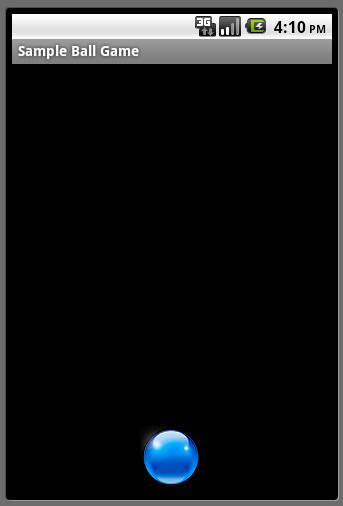
Simple canvas-based Ball game

This is a small project that does this.

"On your phone's screen, you will have a ball lying at the bottom part, in the middle. Once you touch any part of the screen, the ball starts moving in that direction. It continues to move till it hits one of the walls, bounces off the wall, and keeps moving. Depending on the point of touch, the ball will hit the left/right walls a few times, before it eventually escapes out of the view when it crosses the upper boundary."
 Not super fancy stuff or algorithms. You can find the source code here.

Saturday, June 4, 2011

Streaming Radio Stations on Android

Streaming radio stations or audio files hosted on streaming servers on Android is pretty straight-forward. But then, Android has it's limitations. It won't stream just any file or radio station. In this post, I would not be specifying the formats or protocols that Android supports. Rather, this example is just a walk through of how the MediaPlayer class should be used to stream audio files/radio stations.

For an example here, I have used a SHOUTcast radio station. The URL for the source is:
http://shoutcast2.omroep.nl:8104/

The accompanying sample project contains a ProgressBar, two Buttons (for playing and stopping the MediaPlayer).

Before running the example, one should look into the documentation of the MediaPlayer class. A look at the state diagram would perhaps help you clear to understand how it actually works.

To initialize the MediaPlayer, you need a few lines of code. There you go:
MediaPlayer player = new MediaPlayer();
player.setDataSource("http://shoutcast2.omroep.nl:8104/");
Now that the MediaPlayer object is initialized, you are ready to start streaming. Ok, not actually. You will need to issue the MediaPlayer's prepare command. There are 2 variations of this.

  1. prepare(): This is a synchronous call, which is blocked until the MediaPlayer object gets into the prepared state. This is okay if you are trying to play local files that would take the MediaPlayer longer, else your main thread will be blocked.
  2. prepareAsync(): This is, as the name suggests, an asynchronous call. It returns immediately. But, that obvisouly, doesn't mean that the MediaPlayer is prepared yet. You will still have to wait for it to get into the prepared state, but since this method will not block your main thread, you can use this method when you are trying to stream some content from somewhere else. You will get a callback, when the MediaPlayer is ready through onPrepared(MediaPlayer mp) method, and then, the playing can start.
So, for our example, the best choice would be:
player.prepareAsync();
You need to attach a listener to the MediaPlayer to receive the callback when it is prepared. This is the code for that.
player.setOnPreparedListener(new OnPreparedListener(){
            public void onPrepared(MediaPlayer mp) {
                     player.start();
            }
 
});
Once, it goes into the prepared state, you can now start playing. Simple???? Yes, of course. Just to wrap it up, to stop the MediaPlayer, you need to call the stop() method.

There are several other helper methods which lets you query the progress or status of the player. Jump to the docs page and you will find more information on them. You can checkout the source code here.

Project source for the new Eclipse + Android tool chain. Download here.

NOTE: This sample project is tested on Gingerbread(2.3) and should work on Froyo(2.2) and above.

Saturday, April 9, 2011

Using Custom fonts on Android

I had to do this for a project that I am working on, and I felt that it wasn't possible to achieve this. Well, there are several examples on the internet regarding this and nothing seemed to be working for me. So, in this post, we will see how to use custom fonts for your application on Android.

Few things before we start off:
  • Not all fonts are compatible with Android
  • You need to package the ttf files with your apk
  • It's obviously a little bit of extra work
So for this example, we have a TextView and a Button with different fonts. To be able to use your custom font everywhere, ie, on all the TextView and Button widgets in your app, you will have to extend these classes to create your own TextView and Button classes. I have named them as MyTextView and MyButton. And then, I can use these buttons in my layout xml files, with the fully-qualified name of my custom classes.

<?xml version="1.0" encoding="utf-8"?>
<LinearLayout xmlns:android="http://schemas.android.com/apk/res/android"
    android:orientation="vertical" android:layout_width="fill_parent"
    android:layout_height="fill_parent">
    <com.beanie.samples.customfont.MyTextView
        android:layout_marginTop="10dip" android:id="@+id/textView"
        android:layout_width="fill_parent" android:layout_height="wrap_content"
        android:text="@string/hello" android:textSize="20sp"></com.beanie.samples.customfont.MyTextView>

    <com.beanie.samples.customfont.MyButton
        android:layout_marginTop="10dip" android:id="@+id/textView"
        android:layout_width="fill_parent" android:layout_height="wrap_content"
        android:text="@string/hello" android:textSize="20sp"></com.beanie.samples.customfont.MyButton>
</LinearLayout>
In both these classes, we have a method called init() which is called from all the constructors. The method is just 3 line long.
        if (!isInEditMode()) {
                  Typeface tf = Typeface.createFromAsset(getContext().getAssets(), "fonts/ds_digib.ttf");
                  setTypeface(tf);
        }
Simple!!! You might notice that there is an if condition. This is not required, but it does help when you are preparing your layouts on eclipse, and you need to keep checking if everything's fine. This method, isInEditMode() returns true while eclipses tries to render the view from the XML.

This is what the documentation says:
Indicates whether this View is currently in edit mode. A View is usually in edit mode when displayed within a developer tool. For instance, if this View is being drawn by a visual user interface builder, this method should return true. Subclasses should check the return value of this method to provide different behaviors if their normal behavior might interfere with the host environment. For instance: the class spawns a thread in its constructor, the drawing code relies on device-specific features, etc. This method is usually checked in the drawing code of custom widgets.
If you don't put this condition, the layout editor will complain about not being able to set the TypeFace. So, in the layout editor, you will see your TextView and Button widgets with the default font. But, when you run your app on an emulator or a device, you can see the goodness of your custom fonts.

The source code for the sample project can be found here. You can find 3 different fonts (ttf file) in the assets folder to play with.

Monday, April 4, 2011

Inverted Android Button

Nothing complex. Just a few lines of code to invert your button. A horizontal flip of 180 degrees is pretty simple to achieve. If you want it with a specific angle, it might be a bit tricky.

Lets start with a creating a custom button class that extends the android Button class. Name it as InvertedButton.java.

You will need to override it's onDraw() method to rotate the canvas, so that before any drawing is done, you rotate it by 180 degrees. To make the text-alignment perfect, you will also need to do a few calculations.
    @Override
    protected void onDraw(Canvas canvas) {
        int left = getPaddingLeft();
        int top = getPaddingTop();
        int right = getPaddingRight();
        int bottom = getPaddingBottom();
        int width = getWidth() - left - right;
        int height = getHeight() - top - bottom;
       
        int saveCount = canvas.getSaveCount();
        canvas.translate(left + width / 2, top + height / 2);
        canvas.rotate(-180);
        canvas.translate((-width / 2)-left, (-height / 2)-top);
        canvas.restoreToCount(saveCount);
       
        super.onDraw(canvas);

    }
There you go. You can now add this button anywhere in your XML layouts and you will always get an inverted button.
<?xml version="1.0" encoding="utf-8"?>
<LinearLayout xmlns:android="http://schemas.android.com/apk/res/android"
    android:orientation="vertical" android:layout_width="fill_parent"
    android:layout_height="fill_parent">
    <Button android:text="Button" android:id="@+id/button1"
        android:layout_width="wrap_content" android:layout_height="wrap_content"
        android:layout_gravity="center_horizontal|top" android:textStyle="bold"></Button>
    <com.beanie.examples.invertedbutton.InvertedButton
        android:text="Button" android:id="@+id/button2" android:layout_width="wrap_content"
        android:layout_height="wrap_content" android:layout_gravity="center_horizontal|bottom"
        android:textStyle="bold"></com.beanie.examples.invertedbutton.InvertedButton>
</LinearLayout>

You can find the source code here. Happy coding!!!!

Wednesday, November 17, 2010

Getting animations to work

This is a simple project that will explain how to use animations in android through AnimationDrawable. The documentation was a bit outdated. But you might hit a dead-end if you try to call the animation's start method from within any of the Activity's life-cycle methods.

In this example, there is an ImageView with it's "src" value set to an image. The ImageView's background is set with you own AnimationDrawable, basically an xml in your res/drawable folder. In the activity, the ImageView has a click listener, which creates an AnimationDrawable from the ImageView's background, and just calls the start method of the AnimationDrawable class.

Here is a sample AnimationDrawable described through XML.
<?xml version="1.0" encoding="utf-8"?>
<animation-list xmlns:android="http://schemas.android.com/apk/res/android"
    android:oneshot="false"
>
    <item android:drawable="@drawable/black" android:duration="200" />
    <item android:drawable="@drawable/cyan" android:duration="200" />
    <item android:drawable="@drawable/green" android:duration="200" />
    <item android:drawable="@drawable/magenta" android:duration="200" />
    <item android:drawable="@drawable/navy" android:duration="200" />
    <item android:drawable="@drawable/orange" android:duration="200" />
    <item android:drawable="@drawable/pink" android:duration="200" />
    <item android:drawable="@drawable/white" android:duration="200" />
    <item android:drawable="@drawable/yellow" android:duration="200" />
</animation-list>
And here is the code that gets your animation started.
imageView = (ImageView) findViewById(R.id.ImageButton01);
        imageView.setOnClickListener(new OnClickListener() {

            @Override
            public void onClick(View v) {
                AnimationDrawable animator = (AnimationDrawable) imageView.getBackground();
                imageView.setImageDrawable(null);
                animator.start();
            }
        });
One point to notice is that, you have to remove the ImageView's "src" value, so that the animation is visible, since the animation works by changing the background of the ImageView, else, your animation would be blocked by the ImageView's "src" image.

Once you are done, you can stop the animation, and reset the ImageView's "src" to it's original image.
// Call this method to stop the animation
    public void stopAnimation(){
        AnimationDrawable animator = (AnimationDrawable) imageView.getBackground();
        animator.stop();
        imageView.setImageResource(R.drawable.icon);
    }
 You can find the whole source code for this example here.

Monday, October 25, 2010

Unzip files in Android

You need an app that can unzip files? Android provides the classes that are required for this. Basically you will need to checkout two classes. There are other related classes also which would help you with various other things.
  1. ZipInputStream
  2. ZipEntry
This example shows you how to unzip a zip file through these classes. If you want to create zip files, that's also possible, but we will keep it for later. In this project, there is a zip file, called ZipTest.zip in the assets folder. It's pretty easy to pick up any zip file on your phone through code. For simplicity, I have placed out test file in the assets folder.

The code is simple enough to need any more explanations. I have put comments in the code. So, do check it out and run it. I have logged the steps on the Activity. The output files are not readable yet in this example due to the format of writing that I have done here (Update: As per rekin's comment, this is fixed now). But you get idea about how to unzip those files. You can find the whole working code here.

Note: There's not much error handling code put in place.

Saturday, July 17, 2010

Ongoing notifications in Android

There is a concept of an Ongoing notifications in Android where you just show a notification for the duration you are performing some background task/process. This special kind of notification cannot be canceled by the used. Also, if you would like to use an animated icon on the status bar, you can do it. As mentioned in the developer docs, you can also use a custom view for your notification.


I have blogged about is here. There's also a link to the source there which you can directly run.

Thursday, June 17, 2010

Parcelable - How to do that in Android

Passing data between activities is quite easy. You would normally do that using the Bundle packed into an intent. But sometimes you need to pass complex objects from one activity to another. One workaround would be to keep a static instance of the object int your Activity and access it from you new Activity. This might help, but it's definitely not a good way to do this. To pass such objects directly through the Bundle, your class would need to implement the Parcelable interface.

For example you have a class called Student, which has three fields.
1. id
2. name
3. grade

You can create a POJO class for this, but you need to add some extra code to make it Parcelable. Have a look at the implementation.

   1: public class Student implements Parcelable{
   2:     private String id;
   3:     private String name;
   4:     private String grade;
   5:  
   6:     // Constructor
   7:     public Student(String id, String name, String grade){
   8:         this.id = id;
   9:         this.name = name;
  10:         this.grade = grade;
  11:     }
  12:     // Getter and setter methods
  13:     .........
  14:     .........
  15:     
  16:     // Parcelling part
  17:     public Student(Parcel in){
  18:         String[] data = new String[3];
  19:  
  20:         in.readStringArray(data);
  21:         this.id = data[0];
  22:         this.name = data[1];
  23:         this.grade = data[2];
  24:     }
  25:  
  26:     @override
  27:     public int describeContents(){
  28:         return 0;
  29:     }
  30:  
  31:     @Override
  32:     public void writeToParcel(Parcel dest, int flags) {
  33:         dest.writeStringArray(new String[] {this.id,
  34:                                             this.name,
  35:                                             this.grade});
  36:     }
  37:     public static final Parcelable.Creator CREATOR = new Parcelable.Creator() {
  38:         public Student createFromParcel(Parcel in) {
  39:             return new Student(in); 
  40:         }
  41:  
  42:         public Student[] newArray(int size) {
  43:             return new Student[size];
  44:         }
  45:     };
  46: }


Once you have created this class, you can easily pass objects of this class through the Intent like this, and recover this object in the target activity.

   1: intent.putExtra("student", new Student("1","Mike","6"));

Here, the student is the key which you would require to unparcel the data from the bundle.

   1: Bundle data = getIntent().getExtras();
   2: Student student = data.getParcelable("student");

This example shows only String types. But, you can parcel any kind of data you want. Try it out.

Wednesday, June 2, 2010

Checking Network Availability

I have seen a few applications which first try to initiate a network connection before checking if any network is available or not. And then, if the request fails, they toast a message saying "No network available". This might not be the right approach in most of the situations. Before initiating a connection, we should always check the availability of a network and then proceed. Android provides a simple way by which you can know the status of the active network if any. So, why not use it. It's very simple.

The code:
 public static boolean isNetworkAvailable(Context context) {
            boolean value = false;
            ConnectivityManager manager = (ConnectivityManager) context
                             .getSystemService(Context.CONNECTIVITY_SERVICE);
            NetworkInfo info = manager.getActiveNetworkInfo();
            if (info != null && info.isAvailable()) {
                           value = true;
            }
            return value;
 }