Showing posts with label Widgets. Show all posts

Wednesday, October 19, 2011

Simple ViewPager for Android

You would have seen many applications recently, which make use of the new and awesome ViewPager that allows views to be horizontally scrollable. The new Android Market app also implements a flavor of the ViewPager, although it's a little more complex that what we will see here. This class is not available directly for you to use. Check this blog for some insight. It would required you to download a compatibility library from Google, add it to your project wherever you would like to use it, and go about paging views.

And yes, it's very simple to implement. I have coded up a little sample where it shows you how to use a ViewPager with a simple PagerAdapter. More or less, it works like the ListViews. Although there is not much documentation for this, it's quite easy to set up everything.

Firstly, you would need to add the ViewPager into your layout file.

Listing of main.xml
<?xml version="1.0" encoding="utf-8"?>
<LinearLayout xmlns:android="http://schemas.android.com/apk/res/android"
    android:orientation="vertical" android:layout_width="fill_parent"
    android:layout_height="fill_parent">
    <TextView android:text="Page 1" android:id="@+id/textViewHeader"
        android:layout_width="fill_parent" android:layout_height="wrap_content"
        android:gravity="center" android:padding="10dip" android:textStyle="bold"></TextView>
    <android.support.v4.view.ViewPager
        android:layout_width="fill_parent" android:layout_height="fill_parent"
        android:id="@+id/viewPager" />
</LinearLayout>
In this sample, we are using an extra TextView which would show the current page you are on.

Setting up the ViewPager
ViewPager viewPager = (ViewPager) findViewById(R.id.viewPager);
MyPagerAdapter adapter = new MyPagerAdapter(this);
viewPager.setAdapter(adapter);
This code is almost identical to what we would do for a ListView or Gallery. The only difference is that the adapter here, extends a PagerAdapter instead.

The PagerAdapter

The PagerAdapter has a few methods that you would implement. For this example, I have four different views, one for each page. 2 are ListViews, a TextView and a Button, not in that order. Here are the methods that you would need to implement. Look at the MyPageAdapter class for more.

@Override
public void destroyItem(View view, int arg1, Object object) {
         ((ViewPager) view).removeView((View)object);
}
@Override
public int getCount() {
          return views.size();
}
@Override
public Object instantiateItem(View view, int position) {
           View view = views.get(position);
           ((ViewPager) view).addView(view);
           return view;
}
@Override
public boolean isViewFromObject(View view, Object object) {
           return view == object;
}
 And you are done!!! Sweet.... You can find the whole source code here.

Saturday, April 9, 2011

Using Custom fonts on Android

I had to do this for a project that I am working on, and I felt that it wasn't possible to achieve this. Well, there are several examples on the internet regarding this and nothing seemed to be working for me. So, in this post, we will see how to use custom fonts for your application on Android.

Few things before we start off:
  • Not all fonts are compatible with Android
  • You need to package the ttf files with your apk
  • It's obviously a little bit of extra work
So for this example, we have a TextView and a Button with different fonts. To be able to use your custom font everywhere, ie, on all the TextView and Button widgets in your app, you will have to extend these classes to create your own TextView and Button classes. I have named them as MyTextView and MyButton. And then, I can use these buttons in my layout xml files, with the fully-qualified name of my custom classes.

<?xml version="1.0" encoding="utf-8"?>
<LinearLayout xmlns:android="http://schemas.android.com/apk/res/android"
    android:orientation="vertical" android:layout_width="fill_parent"
    android:layout_height="fill_parent">
    <com.beanie.samples.customfont.MyTextView
        android:layout_marginTop="10dip" android:id="@+id/textView"
        android:layout_width="fill_parent" android:layout_height="wrap_content"
        android:text="@string/hello" android:textSize="20sp"></com.beanie.samples.customfont.MyTextView>

    <com.beanie.samples.customfont.MyButton
        android:layout_marginTop="10dip" android:id="@+id/textView"
        android:layout_width="fill_parent" android:layout_height="wrap_content"
        android:text="@string/hello" android:textSize="20sp"></com.beanie.samples.customfont.MyButton>
</LinearLayout>
In both these classes, we have a method called init() which is called from all the constructors. The method is just 3 line long.
        if (!isInEditMode()) {
                  Typeface tf = Typeface.createFromAsset(getContext().getAssets(), "fonts/ds_digib.ttf");
                  setTypeface(tf);
        }
Simple!!! You might notice that there is an if condition. This is not required, but it does help when you are preparing your layouts on eclipse, and you need to keep checking if everything's fine. This method, isInEditMode() returns true while eclipses tries to render the view from the XML.

This is what the documentation says:
Indicates whether this View is currently in edit mode. A View is usually in edit mode when displayed within a developer tool. For instance, if this View is being drawn by a visual user interface builder, this method should return true. Subclasses should check the return value of this method to provide different behaviors if their normal behavior might interfere with the host environment. For instance: the class spawns a thread in its constructor, the drawing code relies on device-specific features, etc. This method is usually checked in the drawing code of custom widgets.
If you don't put this condition, the layout editor will complain about not being able to set the TypeFace. So, in the layout editor, you will see your TextView and Button widgets with the default font. But, when you run your app on an emulator or a device, you can see the goodness of your custom fonts.

The source code for the sample project can be found here. You can find 3 different fonts (ttf file) in the assets folder to play with.

Monday, April 4, 2011

Inverted Android Button

Nothing complex. Just a few lines of code to invert your button. A horizontal flip of 180 degrees is pretty simple to achieve. If you want it with a specific angle, it might be a bit tricky.

Lets start with a creating a custom button class that extends the android Button class. Name it as InvertedButton.java.

You will need to override it's onDraw() method to rotate the canvas, so that before any drawing is done, you rotate it by 180 degrees. To make the text-alignment perfect, you will also need to do a few calculations.
    @Override
    protected void onDraw(Canvas canvas) {
        int left = getPaddingLeft();
        int top = getPaddingTop();
        int right = getPaddingRight();
        int bottom = getPaddingBottom();
        int width = getWidth() - left - right;
        int height = getHeight() - top - bottom;
       
        int saveCount = canvas.getSaveCount();
        canvas.translate(left + width / 2, top + height / 2);
        canvas.rotate(-180);
        canvas.translate((-width / 2)-left, (-height / 2)-top);
        canvas.restoreToCount(saveCount);
       
        super.onDraw(canvas);

    }
There you go. You can now add this button anywhere in your XML layouts and you will always get an inverted button.
<?xml version="1.0" encoding="utf-8"?>
<LinearLayout xmlns:android="http://schemas.android.com/apk/res/android"
    android:orientation="vertical" android:layout_width="fill_parent"
    android:layout_height="fill_parent">
    <Button android:text="Button" android:id="@+id/button1"
        android:layout_width="wrap_content" android:layout_height="wrap_content"
        android:layout_gravity="center_horizontal|top" android:textStyle="bold"></Button>
    <com.beanie.examples.invertedbutton.InvertedButton
        android:text="Button" android:id="@+id/button2" android:layout_width="wrap_content"
        android:layout_height="wrap_content" android:layout_gravity="center_horizontal|bottom"
        android:textStyle="bold"></com.beanie.examples.invertedbutton.InvertedButton>
</LinearLayout>

You can find the source code here. Happy coding!!!!

Sunday, April 4, 2010

Custom AutoComplete for Android

The default custom AutoCompleteTextView is quite a nice widget. But if you want to extend it's functionality, you will need to write your own custom widget. As an example, if you wish to have a EditText for a "To" address field as any email application has, where you want to collect multiple selections from the list that pops up, you will need to extend the AutoCompleteTextView class and write your own small little widget. It's very simple to create one that will suit your need.
So here we go.
1. Class CustomAutoComplete.java
   1: package com.beanie.example.widgets;
   2: import android.content.Context;
   3: import android.text.TextUtils;
   4: import android.util.AttributeSet;
   5: import android.widget.AutoCompleteTextView;
   6:  
   7: public class CustomAutoComplete extends AutoCompleteTextView {
   8:     private String previous = "";
   9:     private String seperator = ";";
  10:     public CustomAutoComplete(final Context context, final AttributeSet attrs, final int defStyle) {
  11:         super(context, attrs, defStyle);
  12:         this.setThreshold(0);
  13:     }
  14:     public CustomAutoComplete(final Context context, final AttributeSet attrs) {
  15:         super(context, attrs);
  16:         this.setThreshold(0);
  17:     }
  18:     public CustomAutoComplete(final Context context) {
  19:         super(context);
  20:         this.setThreshold(0);
  21:     }
  22:     /**
  23:      * This method filters out the existing text till the separator
  24:      * and launched the filtering process again
  25:      */
  26:     @Override
  27:     protected void performFiltering(final CharSequence text, final int keyCode) {
  28:         String filterText = text.toString().trim();
  29:         previous = filterText.substring(0,filterText.lastIndexOf(getSeperator())+1);
  30:         filterText = filterText.substring(filterText.lastIndexOf(getSeperator()) + 1);
  31:         if(!TextUtils.isEmpty(filterText)){
  32:             super.performFiltering(filterText, keyCode);
  33:         }
  34:     }
  35:     /**
  36:      * After a selection, capture the new value and append to the existing
  37:      * text
  38:      */
  39:     @Override
  40:     protected void replaceText(final CharSequence text) {
  41:         super.replaceText(previous+text+getSeperator());
  42:     }
  43:     public String getSeperator() {
  44:         return seperator;
  45:     }
  46:     public void setSeperator(final String seperator) {
  47:         this.seperator = seperator;
  48:     }
  49: }
This class is the main widget class that extends thet AutoCompleteTextView. You have to override 2 methods,
protected void replaceText(final CharSequence text)
protected void performFiltering(final CharSequence text, final int keyCode)
2. You main layout file (main.xml)
   1: &lt;?xml version="1.0" encoding="utf-8"?&gt;
   2: &lt;LinearLayout xmlns:android="http://schemas.android.com/apk/res/android"
   3:     android:orientation="vertical" android:layout_width="fill_parent"
   4:     android:layout_height="fill_parent"&gt;
   5:     &lt;com.beanie.example.widgets.CustomAutoComplete android:layout_width="fill_parent"
   6:         android:layout_height="wrap_content" android:id="@+id/autocomplete"/&gt;
   7: &lt;/LinearLayout&gt;
3. Now we test it. This is your activity class.
   1: package com.beanie.example;
   2: import android.app.Activity;
   3: import android.os.Bundle;
   4: import android.widget.ArrayAdapter;
   5: import com.beanie.example.widgets.CustomAutoComplete;
   6:  
   7: public class TestAutoComplete extends Activity {
   8:     /** Called when the activity is first created. */
   9:     @Override
  10:     public void onCreate(Bundle savedInstanceState) {
  11:         super.onCreate(savedInstanceState);
  12:         setContentView(R.layout.main);
  13:         CustomAutoComplete myAutoComplete = (CustomAutoComplete)findViewById(R.id.autocomplete);
  14:         ArrayAdapter&lt;String&gt; adapter = new ArrayAdapter&lt;String&gt;(this, android.R.layout.simple_dropdown_item_1line);
  15:  
  16:         adapter.add("aaaa");
  17:         adapter.add("abaa");
  18:         adapter.add("acaa");
  19:         adapter.add("adaa");
  20:         adapter.add("aaba");
  21:         adapter.add("aaca");
  22:         adapter.add("aaba");
  23:         adapter.add("aaae");
  24:         
  25:         myAutoComplete.setAdapter(adapter);
  26:     }
  27: }
1Voila, you are done. Here’s a screenshot of our Custom Auto-Complete Text view at work.

You can also change the separator from the default “;” to any other character like a “,” or anything else.
On the adapter, you call the method setSeparator(String any);
Now you have your own custom auto-complete widget for Android.

For this particular example, however, Android provides you a widget by default. MultiAutoCompleteTextView is specifically designed to handle such kind of input.

Saturday, August 22, 2009

Android : Sliding Drawer Example

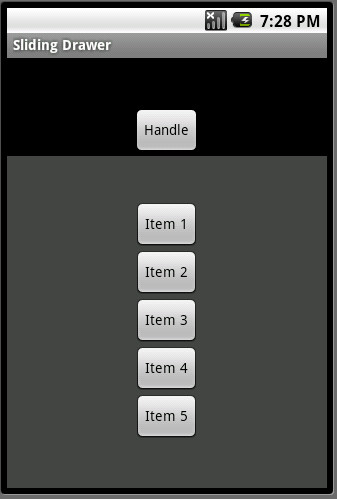
If you have lot’s of stuff to put on your screen for a single activity, you should probably go for the SlidingDrawer widget. It is very simple to use, and looks cute. Here are the steps that you need to do for bringing up the sliding drawer on your activity.

Here is a sample application displaying how to code up a sliding drawer. It's pretty simple, and I don't think it needs more explanation.


<SlidingDrawer android:id="@+id/slidingDrawer1"
        android:layout_width="fill_parent" android:layout_height="fill_parent"
        android:topOffset="50dip" android:handle="@+id/handle"
        android:content="@+id/content">

The sample project sets up a Sliding Drawer at the bottom of the screen. You can change it to appear at place of the screen. You just need to change/adjust some properties of the SlidingDrawer.
  • The orientation property can be set to either "horizontal" and "vertical"
  • There are properties like "topOffset", "bottonOffset", "rightOffset" and "leftOffset" with which you can position your drawer anywhere.
  • With a few more changes, you can attach backgrounds/images to the whole SlidingDrawer. For example, I have added a color background to the content of the Sliding Drawer.
Update: Here is the link to the source code which shows how to cook up a simple sliding drawer.