Showing posts with label UI. Show all posts

Thursday, August 9, 2012

Android Themes: A dialog without a title


Most of the times, I have seen developers not leveraging the power of themes and styles. Themes and styles are a great way to easily create UI that are  manageable and compatible for various platforms. Here's the official documentation that explains styles and themes in details, and I consider this portion of documentation to be equally important to any developer working with Android.

For the example of this post, we will see how to make a dialog, a custom dialog, not to have a title. The easiest way to do this, is through code byt writing this snippet in your custom dialog class.

requestWindowFeature(Window.FEATURE_NO_TITLE);

Dialog with Title on Android 2.2


Dialog with no title on Android 2.2

While this would work anyway, and would also be compatible with all the versions of Android. But, it's a good idea to use more of your themes and styles in your programming, so that your code base is maintainable and your apps would behave and feel consistently. Using styles and themes makes it very easy to tweak or adapt to various platform versions and/or device sizes and resolutions. So, let's get in.

The application tag, has a configurable attribute called "android:theme" with which you can set a theme to your application as a whole. You can also specify themes for individual themes for all your activities separately. Sounds nice!!! But, let's stick to one theme for our application as a whole for simplicity.

For this example, we have a theme (it's actually called a style), called MyThemeSelector as shown below. This is specified in the styles.xml in your values folder. Notice, your custom theme is a child of the Theme, which is one of the system's default themes.

<resources>        <style name="MyThemeSelector" parent="@android:style/Theme"></style></resources>

Ideally, you should also declare your custom theme to extend one of the basic themes that are available with platforms on or above Honeycomb. For example, here we have created another styles.xml in a folder called values-v11, which looks like this.

<resources>
        <style name="MyThemeSelector" parent="@android:style/Theme.DeviceDefault.Light"></style>
</resources>

So, your basic theme is now compatible with both older versions and versions greater than Honeycomb. By this, I mean, that, when you run the app, your app would adapt to the platform that it is running on, and would give a consistent look and feel for your users.

Now, coming back to the main problem. "Creating a dialog without title". Here also, we would use themes, as against code. Here are the two new themes that you would be declaring.

For values folder: (Platform versions older than Honeycomb)

<style name="My.Theme.Dialog" parent="@android:style/Theme.Dialog">
            <item name="android:windowNoTitle">true</item>
</style>
<style name="MyThemedDialog" parent="@style/My.Theme.Dialog"></style>

For values-v11 folder: (Platform version for Honeycomb and above)

<style name="My.Dialog.Theme" parent="@android:style/Theme.DeviceDefault.Light.Dialog.NoActionBar"></style>
<style name="MyThemedDialog" parent="@style/My.Dialog.Theme"></style>
There's a subtle difference between the two versions. Of course, other than the parent classes. In older platform versions, there wasn't a version of the Dialog theme without a title bar. So, what we do here, is to extend the basic Dialog them, and overwrite an attribute, so that our custom "My.Theme.Dialog" is a dialog without a title bar.

But, for Honeycomb and above, the platform itself provides a version of the Dialog theme, without the title bar (or the Action Bar).

And finally, the last step for getting everything to work is set the theme to your dialogs.
MyDialog dialog = new MyDialog(this, R.style.MyThemedDialog);
dialog.setTitle("Here's my title");
dialog.show(); 
Why didn't we use "My.Theme.Dialog" directly? Well, we could still try and tweak the theme for older versions, in the values folder, by adding a few more attributes.


Dialog with title on Android 4.1


Dialog with no title on Android 4.1

As you can see, for both older and newer platforms, the app runs by adapting itself and gives a consistent look and feel. You didn't have to do much with your code. 

15 lines of XML is the MAGIC here!!!!  (I didn't count though, just guessing)

Sample project here.

Monday, April 4, 2011

Inverted Android Button

Nothing complex. Just a few lines of code to invert your button. A horizontal flip of 180 degrees is pretty simple to achieve. If you want it with a specific angle, it might be a bit tricky.

Lets start with a creating a custom button class that extends the android Button class. Name it as InvertedButton.java.

You will need to override it's onDraw() method to rotate the canvas, so that before any drawing is done, you rotate it by 180 degrees. To make the text-alignment perfect, you will also need to do a few calculations.
    @Override
    protected void onDraw(Canvas canvas) {
        int left = getPaddingLeft();
        int top = getPaddingTop();
        int right = getPaddingRight();
        int bottom = getPaddingBottom();
        int width = getWidth() - left - right;
        int height = getHeight() - top - bottom;
       
        int saveCount = canvas.getSaveCount();
        canvas.translate(left + width / 2, top + height / 2);
        canvas.rotate(-180);
        canvas.translate((-width / 2)-left, (-height / 2)-top);
        canvas.restoreToCount(saveCount);
       
        super.onDraw(canvas);

    }
There you go. You can now add this button anywhere in your XML layouts and you will always get an inverted button.
<?xml version="1.0" encoding="utf-8"?>
<LinearLayout xmlns:android="http://schemas.android.com/apk/res/android"
    android:orientation="vertical" android:layout_width="fill_parent"
    android:layout_height="fill_parent">
    <Button android:text="Button" android:id="@+id/button1"
        android:layout_width="wrap_content" android:layout_height="wrap_content"
        android:layout_gravity="center_horizontal|top" android:textStyle="bold"></Button>
    <com.beanie.examples.invertedbutton.InvertedButton
        android:text="Button" android:id="@+id/button2" android:layout_width="wrap_content"
        android:layout_height="wrap_content" android:layout_gravity="center_horizontal|bottom"
        android:textStyle="bold"></com.beanie.examples.invertedbutton.InvertedButton>
</LinearLayout>

You can find the source code here. Happy coding!!!!

Thursday, December 16, 2010

Improved Copy/Paste in Gingerbread

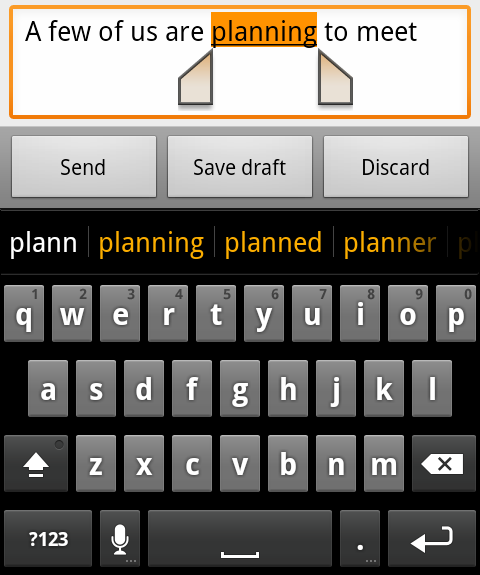
It's really important for the copy/paste feature to work on a mobile even if you don't have a mouse to select text you want to copy. Apple's implementation is nice. Till Froyo, there wasn't a unified concept of copy/paste feature implemented. But, the Gingerbread has actually changed a few things :) . Copying phone numbers from your mails and email addresses from web pages should be trivial and should involve the least amount of button presses. Prior to Gingerbread, this wasn't the case, but Gingerbread has this "New Feature now".

Here's the link where you can find out more about this.

Some images and videos

Official documentation

You need to double-tap on the text before you can bring up the text selection controls. Once you are done with the selection, single tap on the text copies the selected text to the clipboard, and then you can extract the data from the clipboard. This is really nice. Else, you would have to write a bit of extra code to trigger text selection mode first. This copy/paste selector works on an EditText and on the Browser. I haven't tested it further.


Gingerbread Stuff!!!! **It works on the emulator**.

Wednesday, November 17, 2010

Getting animations to work

This is a simple project that will explain how to use animations in android through AnimationDrawable. The documentation was a bit outdated. But you might hit a dead-end if you try to call the animation's start method from within any of the Activity's life-cycle methods.

In this example, there is an ImageView with it's "src" value set to an image. The ImageView's background is set with you own AnimationDrawable, basically an xml in your res/drawable folder. In the activity, the ImageView has a click listener, which creates an AnimationDrawable from the ImageView's background, and just calls the start method of the AnimationDrawable class.

Here is a sample AnimationDrawable described through XML.
<?xml version="1.0" encoding="utf-8"?>
<animation-list xmlns:android="http://schemas.android.com/apk/res/android"
    android:oneshot="false"
>
    <item android:drawable="@drawable/black" android:duration="200" />
    <item android:drawable="@drawable/cyan" android:duration="200" />
    <item android:drawable="@drawable/green" android:duration="200" />
    <item android:drawable="@drawable/magenta" android:duration="200" />
    <item android:drawable="@drawable/navy" android:duration="200" />
    <item android:drawable="@drawable/orange" android:duration="200" />
    <item android:drawable="@drawable/pink" android:duration="200" />
    <item android:drawable="@drawable/white" android:duration="200" />
    <item android:drawable="@drawable/yellow" android:duration="200" />
</animation-list>
And here is the code that gets your animation started.
imageView = (ImageView) findViewById(R.id.ImageButton01);
        imageView.setOnClickListener(new OnClickListener() {

            @Override
            public void onClick(View v) {
                AnimationDrawable animator = (AnimationDrawable) imageView.getBackground();
                imageView.setImageDrawable(null);
                animator.start();
            }
        });
One point to notice is that, you have to remove the ImageView's "src" value, so that the animation is visible, since the animation works by changing the background of the ImageView, else, your animation would be blocked by the ImageView's "src" image.

Once you are done, you can stop the animation, and reset the ImageView's "src" to it's original image.
// Call this method to stop the animation
    public void stopAnimation(){
        AnimationDrawable animator = (AnimationDrawable) imageView.getBackground();
        animator.stop();
        imageView.setImageResource(R.drawable.icon);
    }
 You can find the whole source code for this example here.

Friday, September 17, 2010

ExpandableListView on Android

ListView is pretty widely used. There are situations when you would like to group/categorize your list items. To achieve such a thing on Android, you would probably use the ExpandableListView. The data to the ExpandableListView is supplied by a special kind of adapter called the SimpleExpandableListAdapter which extends the BaseExpandableListAdapter.

As with any other widget on Android, you are free to customize the widgets as per your needs. Here, I will show how to create such a custom list adapter for the ExpandableListView.

For this example, I want to show a list of vehicles with their names. Also, I want to group them according to their category.

I have 4 classes.
1. Vehicle : The parent class for the rest.
2. Car: Extends the Vehicle class.
3. Bus: Extends the Vehicle class.
4. Bike: Extends the Vehicle class.

I have a method called getRandomVehicle(String name) which returns a random vehicle instance setting the name that I pass. The vehicle can be a Bus, Car or a Bike. Its completely random.

In the ExpandableListAdapter, (the custom adapter), there's a method called addItem(Vehicle vehicle), which manages the groups and their children.

In the SampleActivity, I have initialized a blank ExpandableListAdapter and set it to the list view. Now, I start a thread, which gets a random vehicle after every 2 seconds, and adds it to the adapter, and calls the adapter to notify that the data has changed.

There are a few methods, in the ExpandableListAdapter, which you should go through carefully. I have two layout files, group_layout.xml and child_layout.xml which are used as the layout for the group views and the child views of the ExpandableListView.

There you go, you have a custom ExpandableListView. You can find the full source code for this example here, ready to run.

There are some more methods that you might be interested in, like, how to change the "arrow icon" for the group views(official doc link), or how to expand or collapse a group at will, or how to handle specific events like group collapsed or group expanded. Read the docs on ExpandableListView.

Thursday, April 8, 2010

Simple Drag n Drop on Android

Till now, there is no Drag and Drop like control on the Android. This feature might come in handy in a few situations to improve the usability of your apps. Here is a simple Drag and Drop app which allows you to drag a button and drop it anywhere on the screen.
Theory: Go for a FrameLayout.
FrameLayout is designed to block out an area on the screen to display a single item. You can add multiple children to a FrameLayout, but all children are pegged to the top left of the screen. Children are drawn in a stack, with the most recently added child on top.
In our main layout, we have a single button. We write a touch listener which will track the touch events and also help us to move the button around the screen. In this example, we will not be moving the button, but it’s image which we set to a ImageView. Also, instead of actually moving the ImageView, we will change the padding of the ImageView as the mouse moves, which will give an impression of the ImageView being moved.
12
The source code for this can be found on this link.
Drag and Drop example

Monday, April 5, 2010

Custom ProgressBar for Android

We will try to make a new progress bar with our own progress animation. It's pretty simple and can be easily set up to run in few minutes. Here we go.

1. MyProgressBar.java
This class extends the ProgressBar class and has two methods that we would need to call to start and stop the animation.

       To start the animation: call startAnimation()
       To stop the animation: call dismiss()

Basically, we run a thread which keeps on switching the images. That's it.

2. myprogressbar.xml

This is the layout that the MyProgressBar would be using. This animation would be using 9 images which are in the drawable folder.


You can check out the whole project from the SVN. Here is the link.

https://myandroidwidgets.googlecode.com/svn/trunk/Custom_Progress_Bar

Sunday, April 4, 2010

Custom AutoComplete for Android

The default custom AutoCompleteTextView is quite a nice widget. But if you want to extend it's functionality, you will need to write your own custom widget. As an example, if you wish to have a EditText for a "To" address field as any email application has, where you want to collect multiple selections from the list that pops up, you will need to extend the AutoCompleteTextView class and write your own small little widget. It's very simple to create one that will suit your need.
So here we go.
1. Class CustomAutoComplete.java
   1: package com.beanie.example.widgets;
   2: import android.content.Context;
   3: import android.text.TextUtils;
   4: import android.util.AttributeSet;
   5: import android.widget.AutoCompleteTextView;
   6:  
   7: public class CustomAutoComplete extends AutoCompleteTextView {
   8:     private String previous = "";
   9:     private String seperator = ";";
  10:     public CustomAutoComplete(final Context context, final AttributeSet attrs, final int defStyle) {
  11:         super(context, attrs, defStyle);
  12:         this.setThreshold(0);
  13:     }
  14:     public CustomAutoComplete(final Context context, final AttributeSet attrs) {
  15:         super(context, attrs);
  16:         this.setThreshold(0);
  17:     }
  18:     public CustomAutoComplete(final Context context) {
  19:         super(context);
  20:         this.setThreshold(0);
  21:     }
  22:     /**
  23:      * This method filters out the existing text till the separator
  24:      * and launched the filtering process again
  25:      */
  26:     @Override
  27:     protected void performFiltering(final CharSequence text, final int keyCode) {
  28:         String filterText = text.toString().trim();
  29:         previous = filterText.substring(0,filterText.lastIndexOf(getSeperator())+1);
  30:         filterText = filterText.substring(filterText.lastIndexOf(getSeperator()) + 1);
  31:         if(!TextUtils.isEmpty(filterText)){
  32:             super.performFiltering(filterText, keyCode);
  33:         }
  34:     }
  35:     /**
  36:      * After a selection, capture the new value and append to the existing
  37:      * text
  38:      */
  39:     @Override
  40:     protected void replaceText(final CharSequence text) {
  41:         super.replaceText(previous+text+getSeperator());
  42:     }
  43:     public String getSeperator() {
  44:         return seperator;
  45:     }
  46:     public void setSeperator(final String seperator) {
  47:         this.seperator = seperator;
  48:     }
  49: }
This class is the main widget class that extends thet AutoCompleteTextView. You have to override 2 methods,
protected void replaceText(final CharSequence text)
protected void performFiltering(final CharSequence text, final int keyCode)
2. You main layout file (main.xml)
   1: &lt;?xml version="1.0" encoding="utf-8"?&gt;
   2: &lt;LinearLayout xmlns:android="http://schemas.android.com/apk/res/android"
   3:     android:orientation="vertical" android:layout_width="fill_parent"
   4:     android:layout_height="fill_parent"&gt;
   5:     &lt;com.beanie.example.widgets.CustomAutoComplete android:layout_width="fill_parent"
   6:         android:layout_height="wrap_content" android:id="@+id/autocomplete"/&gt;
   7: &lt;/LinearLayout&gt;
3. Now we test it. This is your activity class.
   1: package com.beanie.example;
   2: import android.app.Activity;
   3: import android.os.Bundle;
   4: import android.widget.ArrayAdapter;
   5: import com.beanie.example.widgets.CustomAutoComplete;
   6:  
   7: public class TestAutoComplete extends Activity {
   8:     /** Called when the activity is first created. */
   9:     @Override
  10:     public void onCreate(Bundle savedInstanceState) {
  11:         super.onCreate(savedInstanceState);
  12:         setContentView(R.layout.main);
  13:         CustomAutoComplete myAutoComplete = (CustomAutoComplete)findViewById(R.id.autocomplete);
  14:         ArrayAdapter&lt;String&gt; adapter = new ArrayAdapter&lt;String&gt;(this, android.R.layout.simple_dropdown_item_1line);
  15:  
  16:         adapter.add("aaaa");
  17:         adapter.add("abaa");
  18:         adapter.add("acaa");
  19:         adapter.add("adaa");
  20:         adapter.add("aaba");
  21:         adapter.add("aaca");
  22:         adapter.add("aaba");
  23:         adapter.add("aaae");
  24:         
  25:         myAutoComplete.setAdapter(adapter);
  26:     }
  27: }
1Voila, you are done. Here’s a screenshot of our Custom Auto-Complete Text view at work.

You can also change the separator from the default “;” to any other character like a “,” or anything else.
On the adapter, you call the method setSeparator(String any);
Now you have your own custom auto-complete widget for Android.

For this particular example, however, Android provides you a widget by default. MultiAutoCompleteTextView is specifically designed to handle such kind of input.

Wednesday, March 24, 2010

Custom Buttons on Android

The default buttons are a kind of ugly when you change the background of an activity. In some scenarios, you will be forced to change the way your Buttons look. To achieve this, you need not create your own custom Button class. The Android framework provides ways to achieve this with minimum effort.


Let's say we have a Button in a simple layout for which we need to do this. Here is a simple layout with just a button.

<?xml version="1.0" encoding="utf-8"?>
<LinearLayout xmlns:android="http://schemas.android.com/apk/res/android"
    android:orientation="vertical"
    android:layout_width="fill_parent"
    android:layout_height="fill_parent"
    >
<Button
    android:layout_width="fill_parent"
    android:layout_height="wrap_content"
    android:text="@string/click"
    android:background="@drawable/custom_button"
    />
</LinearLayout>
Note the android:background attribute on the Button. This refers to a drawable which is an xml in your drawable folder which will determine the different states of your button, namely,
1. default
2. pressed
3. focussed

This is the code for custom_button.xml:
<?xml version="1.0" encoding="utf-8"?>
<selector xmlns:android="http://schemas.android.com/apk/res/android">
    <item android:state_focused="true" android:state_pressed="false" android:drawable="@drawable/focussed" />
    <item android:state_focused="true" android:state_pressed="true" android:drawable="@drawable/focussedandpressed" />
    <item android:state_focused="false" android:state_pressed="true" android:drawable="@drawable/pressed" />
    <item android:drawable="@drawable/default" />
</selector>

For this selector tag, note all the drawable attributes. You will have different png images for each of the states which you would put in your drawable folder.

Now you have your own custom button with customized look and feel.

Monday, October 5, 2009

Gesture Detection on Android

I just got my gesture detection code working. It's a fun way and a convenient way as well to enhance the usability of your application. So, here is the code that gets you going. First, for the Activity that you want to detect gestures, the OnGestureListener interface has to be implemented. Then, you need to override the methods and implement them. And finally, you need to implement the onTouchEvent method of the activity that will trigger the gesture listener code.

   1: package com.beanie.androidco;
   2:  
   3: import android.app.Activity;
   4: import android.os.Bundle;
   5: import android.view.GestureDetector;
   6: import android.view.MotionEvent;
   7: import android.view.GestureDetector.OnGestureListener;
   8:  
   9: public class GestureDemo extends Activity implements OnGestureListener {
  10:     private GestureDetector gestureDetector;
  11:     @Override
  12:     public void onCreate(Bundle savedInstanceState) {
  13:         super.onCreate(savedInstanceState);
  14:         setContentView(R.layout.main);
  15:         gestureDetector = new GestureDetector(this);
  16:     }
  17:  
  18:     @Override
  19:     public boolean onTouchEvent(MotionEvent event) {
  20:         return gestureDetector.onTouchEvent(event);
  21:     }
  22:  
  23:     @Override
  24:     public boolean onDown(MotionEvent e) {
  25:         // Do something
  26:         return false;
  27:     }
  28:  
  29:     @Override
  30:     public boolean onFling(MotionEvent e1, MotionEvent e2, float velocityX,
  31:             float velocityY) {
  32:         // Do something
  33:         return false;
  34:     }
  35:  
  36:     @Override
  37:     public void onLongPress(MotionEvent e) { 
  38:         // Do something
  39:     }
  40:  
  41:     @Override
  42:     public boolean onScroll(MotionEvent e1, MotionEvent e2, float distanceX,
  43:             float distanceY) {
  44:         // Do something
  45:         return false;
  46:     }
  47:  
  48:     @Override
  49:     public void onShowPress(MotionEvent e) { 
  50:         // Do something
  51:     }
  52:  
  53:     @Override
  54:     public boolean onSingleTapUp(MotionEvent e) { 
  55:         // Do something 
  56:         return false;
  57:     }
  58: }

The most commonly used method would probably be the onFling method, where you have to check for a threshold velocity and displacement before you would want to trigger an action. For detecting Left Fling, Right Fling, Scroll down/up, you will need to write some extra code in the corresponding methods. Enjoy...