Showing posts with label Android. Show all posts

Saturday, March 28, 2015

PIN Screen Library for Android

Here's a simple and easy implementation for adding PIN lock support for your Android apps. The library can be themed with your app theme colors. It has smooth animations and vibrate cues when something's wrong.


To use this, you just have to write about 10 lines of code, including layouts and everything. It's so simple.

Steps to implement
  • Add as dependency
      Maven:
<dependency>
    <groupId>com.kbeanie</groupId>
    <artifactId>pinscreenlibrary</artifactId>
    <version>1.0.0</version>
</dependency>
       Android Studio:
compile 'com.kbeanie:pinscreenlibrary:1.0.0@aar' 
  • Add PinView to your layout file. 
<com.kbeanie.pinscreenlibrary.views.PinView
    android:id="@+id/pinView"
    android:layout_width="match_parent"
    android:layout_height="wrap_content" />
  • Initialize PinView in two modes 
pinView.setModeSetup(PinEntrySetupListener);
pinView.setModeAuthenticate(PinEntryAuthenticationListener)

And finally, handle the callbacks for all events. The complete source code for this project can be found on Github. Let me know if you have any queries or issues. I would be happy to resolve them. 

Thursday, November 20, 2014

New Sensors in Android 5.0 (Lollipop)

I found a few non-documented sensors on Lollipop (Android 5.0) on a Nexus 5.

Tried looking for them, but could't find any documentation on them on. Looks like they are mostly software sensors.

Android app on Google PlayHere's the list that I have found. I have written a simple app that displays all the sensors and shows there values. Not to mention that, only for the ones that are documented. For the ones not documented, you can only see it's details.

There are only a few which appear on developer.android.com.
Here's an excerpt from the announcement.

New types of sensors

In Android 5.0, a new tilt detector sensor helps improve activity recognition on supported devices, and a heart rate sensor reports the heart rate of the person touching the device.
New interaction composite sensors are now available to detect special interactions such as a wake up gesture, a pick upgesture, and a glance gesture.

Since there's no documentation, for some of them, I don't really know what they do. The only thing that gives you a clue is the sensor name. And, I don't know how to work with them as well.


Tilt Detector


AMD Sensor (No idea, whats that)


RMD Sensor (No idea, whats that)


Basic Gestures Sensor


Tap Sensor


Facing Sensor


Tilt Sensor


Pedometer


Pedestrian Activity Monitor

Update: Seems, the documentation is coming soon. XDA picked this up.


Friday, June 20, 2014

Easy Swipe to Refresh in Android

Swipe to Refresh Android
Recently, Google released a new version of the Support Library, which has an interesting component. It's called SwipeRefreshLayout. With that, it's become a child's play to implement a quick Swipe-to-Refresh control for your apps.

A few things first

  1. Available only with android-support-v13. Which means that only apps target SDK level 13 and above can use this.
  2. It can only contain one scrollable direct child such as a ListView or a ScrollView.
That's all you need to know. Well.. A few things more, basically some xml and java code.

For this example, we use a ListView with some demo data. Once the list view is scrolled, we do some task, wait for sometime, and update the list view's adapter. Finally, ask the SwipeRefreshLayout to stop the progress indicator, since we are done with refreshing.

The layout file
<RelativeLayout xmlns:android="http://schemas.android.com/apk/res/android"
    xmlns:tools="http://schemas.android.com/tools"
    android:layout_width="match_parent"
    android:layout_height="match_parent"
    tools:context="${packageName}.${activityClass}" >
    <android.support.v4.widget.SwipeRefreshLayout
        android:id="@+id/swipeLayout"
        android:layout_width="match_parent"
        android:layout_height="match_parent" >
        <ListView
            android:id="@+id/listView"
            android:layout_width="match_parent"
            android:layout_height="match_parent" >
        </ListView>
    </android.support.v4.widget.SwipeRefreshLayout>
</RelativeLayout>
The UI initialization
private void initializeViews() {
refreshLayout = (SwipeRefreshLayout) findViewById(R.id.swipeLayout);
refreshLayout.setOnRefreshListener(this);
                // The default colors for the progress bar are not so nice.
setColorSchemeForProgressBar();
ListView listView = (ListView) findViewById(R.id.listView);
adapter = new ArrayAdapter<String>(this,
android.R.layout.simple_list_item_1);
adapter.addAll(getDemoData(5));
listView.setAdapter(adapter);
  }
The Refresh Task
       @Override
public void onRefresh() {
Log.i(TAG, "Refresh Requested");
doRefresh();
}
// Fetch data and update listview's adapter
private void doRefresh() {
RefreshTask task = new RefreshTask();
task.execute((Void) null);
The Completion Work
private void postRefreshComplete() {
// Stop the refresh animation
refreshLayout.setRefreshing(false);
// Update adapter with new data
adapter.clear();
adapter.addAll(getDemoData(new Random().nextInt(20)));
adapter.notifyDataSetChanged();
   }

And there you go, a simple swipe to refresh usage for your Android apps. You can find the whole source code here

Monday, March 31, 2014

Step Detector and Step Counter Sensors on Android

Android KitKat has added a few more hardware sensors to it's API list. Step Sensors are one of them, which looks very promising. Although, not a lot of phones yet have these Step Sensors, in the future, this would gradually become a standard I think. Currently, Nexus 5 has them.

Let's see how we can interact with these sensors. Basically, there are 2 sensors.
  1. Step Counter: This keeps a count of the number of steps that you have taken. The counter is only reset when you re-boot the device, else, for every step you take (or the phone thinks you took, you counts up).
  2. Step Detector: This sensor just detects when you take a step. That's it. 
The example project shows you how to initialize and setup the SensorManager and respond to events from the Sensors.
// Step Counter
sManager.registerListener(new SensorEventListener() {
@Override
public void onSensorChanged(SensorEvent event) {
float steps = event.values[0];
textViewStepCounter.setText((int) steps + "");
}
@Override
public void onAccuracyChanged(Sensor sensor, int accuracy) {
}
}, sManager.getDefaultSensor(Sensor.TYPE_STEP_COUNTER),
SensorManager.SENSOR_DELAY_UI);

// Step Detector
sManager.registerListener(new SensorEventListener() {
@Override
public void onSensorChanged(SensorEvent event) {
// Time is in nanoseconds, convert to millis
timestamp = event.timestamp / 1000000;
}
@Override
public void onAccuracyChanged(Sensor sensor, int accuracy) {
}
}, sManager.getDefaultSensor(Sensor.TYPE_STEP_DETECTOR),
SensorManager.SENSOR_DELAY_UI); 

No special permissions are required.

Head over to Github to get the full source code.

Saturday, December 7, 2013

Smartphone Usage Statistics Highlight Its Importance In Our Lives

Smartphone Usage Statistics Highlight Its Importance In Our Lives

This Infographic is produced by Coupon Audit (provides Finish Line promo code) and Techdroid.Kbeanie

If you would like to add this inforgraphic on your website or blog, copy and paste the below code as given in the textbox.

Saturday, March 30, 2013

Easy Image Chooser Library for Android

In almost all the Android apps that I have worked on, there has been a requirement for choosing an image or taking a snap and using the device's camera.

Taking a snap, is rather straightforward to implement, but choosing an image from your gallery is sometimes a hard nut to crack. And to implement this correctly, you would always end up writing a lot of code. Assuming that you want to target all OSes, devices, folders etc.

For example, choosing a picture from the Camera folder of your phone is nice and easy. But, if you want to have the user chose an image from one of his picasa web albums, which he has synced on his phone, you will find a dead-end. Well, almost.

For myself, I must have at-least rewritten the same code, multiple number of times. Of course, the platform should help us in achieving this seemingly straightforward feature with as less code as possible. But, right now, it's not possible.

So, I thought of creating a library which anyone could integrate within one's own app, without really worrying about the nitty-gritties and the bugs, to implement or add this feature into his app. And there's more. Most of the time, you would need a scaled down version of the chosen image to show a preview or use it in a listview. This library would give you 3 sizes, as of now.
  1. Original Size
  2. Thumbnail Size
  3. Thumbnail Smaller Size
The sizes are dynamically calculated, based on the original size of the image. It's pretty rough here, but I am looking forward to improve that part.

This version of the library is pretty basic. But, I would be working on improving this library to add more functionality in the future.

You can find more information about this library here.

By using this library in the current state, you could handle all these cases/special cases with just a few lines of code. An example of this is shown below.

Usage:

1. For choosing an image from gallery
imageChooserManager = new ImageChooserManager(this, ChooserType.REQUEST_PICK_PICTURE);
imageChooserManager.setImageChooserListener(this);
imageChooserManager.choose();
2. For capturing a picture using your camera
imageChooserManager = new ImageChooserManager(this, ChooserType.REQUEST_CAPTURE_PICTURE);
imageChooserManager.setImageChooserListener(this);
imageChooserManager.choose();

3. On Activity result, do this:
@Override
protected void onActivityResult(int requestCode, int resultCode, Intent data) {
if (resultCode == RESULT_OK &&
(requestCode == ChooserType.
REQUEST_PICK_PICTURE||
requestCode == ChooserType.
REQUEST_CAPTURE_PICTURE)) {
imageChooserManager.submit(requestCode, data);
}
}
4. Implement the ImageChooserListener interface and override these methods:
@Override
public void onImageChosen(final ChosenImage image) {
runOnUiThread(new Runnable() {
@Override
public void run() {
if (image != null) {
// Use the image
// image.getFilePathOriginal();
// image.getFileThumbnail();
// image.getFileThumbnailSmall();
}
}
});
}
@Override
public void onError(final String reason) {
runOnUiThread(new Runnable() {
@Override
public void run() {
// Show error message
}
});
}
That's all you need to code. And the library takes care of handling all kinds of images, and also generates 2 thumbnails which you could directly use. Let me know if you need to add any new features or if you find a bug. I will try to address those as soon as humanly possible. If you would like to contribute to this project, drop me a mail.

Thursday, November 15, 2012

Easier Bug Reporting on 4.2

With the recent release of an updated Jelly Bean version, i.e, 4.2, there have been quite some new things to awe you.

These are two things that could probably make a developers life easier.


  • Take bug report — immediately takes a screen shot and dumps device state information to local file storage, then attaches them to a new outgoing email message.
  • Power menu bug reports — Adds a new option to the device power menu and quick settings to take a bug report (see above).
Remember, while you were testing your app on a bus, or you were away from your desktop/laptop and got a dreaded crash!! You, so eagerly want to have a look at the logcat, or even save the logcat output for later investigation. And most of the times, I don't have SendLog, which I could fire up, and send me the logs.

With 4.2, it's already built-in to your phone. Here are a few screenshots, that give you an idea.


Enable this option from the Settings Page.


Hold the power button, to see the option to capture a "Bug Report"

Happy Coding...

Thursday, August 23, 2012

Check orientation of images/captures

A lot of times, you would need your app to either pick an image from the gallery or use the device's camera for capturing a picture that your app could use. I have seen a lot of apps, do it plain wrong. Especially, the orientation of the images.

The default gallery app, reads the orientation properly, and displays the images/thumbnails properly. So, our apps can also handle images in various orientations properly. And the good news is, it's very easy to handle.

There's a class called ExifInterface. Most of the times, when you have a similar situation, you would almost never want a full-scaled image to be shown in your app. Most often, we use a thumbnail view for the purpose. The following code would get you a re-sized bitmap, from your original file.

Say for example, we have this path to the actual image file. imagePath

1. Create a Bitmap from the file

Bitmap b = BitmapFactory.decodeFile(imagePath);

2. Resize the Bitmap by scaling it to appropriate level
int width = b.getWidth();
int height = b.getHeight();
int newWidth = 150;
int newHeight = 150;
float scaleWidth = ((float) newWidth) / width;
float scaleHeight = ((float) newHeight) / height;
Matrix matrix = new Matrix();
matrix.postScale(scaleWidth, scaleHeight);
// Bitmap resizedBitmap = Bitmap.createBitmap(b, 0, 0, width, height, matrix, true);
// resizedBitmap.compress(Bitmap.CompressFormat.JPEG, 70, out);

3. Handle orientation of the image
ExifInterface exif = new ExifInterface(imagePath);
String orientation = exif.getAttribute(ExifInterface.TAG_ORIENTATION);
if (orientation.equals(ExifInterface.ORIENTATION_NORMAL)) {
        // Do nothing. The original image is fine.
} else if (orientation.equals(ExifInterface.ORIENTATION_ROTATE_90+"")) {
        matrix.postRotate(90);
} else if (orientation.equals(ExifInterface.ORIENTATION_ROTATE_180+"")) {
        matrix.postRotate(180);
} else if (orientation.equals(ExifInterface.ORIENTATION_ROTATE_270+"")) {
        matrix.postRotate(270);
}

4. Save the new bitmap 
out = new FileOutputStream(new File("some output file path"));
Bitmap resizedBitmap = Bitmap.createBitmap(b, 0, 0, width, height, matrix, true);
resizedBitmap.compress(Bitmap.CompressFormat.JPEG, 70, out);
Now your output file would be an image that is resized and handled properly for orientation of the images. You could directly use the "resized" bitmap, but I prefere files.


Thursday, August 9, 2012

Android Themes: A dialog without a title


Most of the times, I have seen developers not leveraging the power of themes and styles. Themes and styles are a great way to easily create UI that are  manageable and compatible for various platforms. Here's the official documentation that explains styles and themes in details, and I consider this portion of documentation to be equally important to any developer working with Android.

For the example of this post, we will see how to make a dialog, a custom dialog, not to have a title. The easiest way to do this, is through code byt writing this snippet in your custom dialog class.

requestWindowFeature(Window.FEATURE_NO_TITLE);

Dialog with Title on Android 2.2


Dialog with no title on Android 2.2

While this would work anyway, and would also be compatible with all the versions of Android. But, it's a good idea to use more of your themes and styles in your programming, so that your code base is maintainable and your apps would behave and feel consistently. Using styles and themes makes it very easy to tweak or adapt to various platform versions and/or device sizes and resolutions. So, let's get in.

The application tag, has a configurable attribute called "android:theme" with which you can set a theme to your application as a whole. You can also specify themes for individual themes for all your activities separately. Sounds nice!!! But, let's stick to one theme for our application as a whole for simplicity.

For this example, we have a theme (it's actually called a style), called MyThemeSelector as shown below. This is specified in the styles.xml in your values folder. Notice, your custom theme is a child of the Theme, which is one of the system's default themes.

<resources>        <style name="MyThemeSelector" parent="@android:style/Theme"></style></resources>

Ideally, you should also declare your custom theme to extend one of the basic themes that are available with platforms on or above Honeycomb. For example, here we have created another styles.xml in a folder called values-v11, which looks like this.

<resources>
        <style name="MyThemeSelector" parent="@android:style/Theme.DeviceDefault.Light"></style>
</resources>

So, your basic theme is now compatible with both older versions and versions greater than Honeycomb. By this, I mean, that, when you run the app, your app would adapt to the platform that it is running on, and would give a consistent look and feel for your users.

Now, coming back to the main problem. "Creating a dialog without title". Here also, we would use themes, as against code. Here are the two new themes that you would be declaring.

For values folder: (Platform versions older than Honeycomb)

<style name="My.Theme.Dialog" parent="@android:style/Theme.Dialog">
            <item name="android:windowNoTitle">true</item>
</style>
<style name="MyThemedDialog" parent="@style/My.Theme.Dialog"></style>

For values-v11 folder: (Platform version for Honeycomb and above)

<style name="My.Dialog.Theme" parent="@android:style/Theme.DeviceDefault.Light.Dialog.NoActionBar"></style>
<style name="MyThemedDialog" parent="@style/My.Dialog.Theme"></style>
There's a subtle difference between the two versions. Of course, other than the parent classes. In older platform versions, there wasn't a version of the Dialog theme without a title bar. So, what we do here, is to extend the basic Dialog them, and overwrite an attribute, so that our custom "My.Theme.Dialog" is a dialog without a title bar.

But, for Honeycomb and above, the platform itself provides a version of the Dialog theme, without the title bar (or the Action Bar).

And finally, the last step for getting everything to work is set the theme to your dialogs.
MyDialog dialog = new MyDialog(this, R.style.MyThemedDialog);
dialog.setTitle("Here's my title");
dialog.show(); 
Why didn't we use "My.Theme.Dialog" directly? Well, we could still try and tweak the theme for older versions, in the values folder, by adding a few more attributes.


Dialog with title on Android 4.1


Dialog with no title on Android 4.1

As you can see, for both older and newer platforms, the app runs by adapting itself and gives a consistent look and feel. You didn't have to do much with your code. 

15 lines of XML is the MAGIC here!!!!  (I didn't count though, just guessing)

Sample project here.

Wednesday, December 28, 2011

Bluetooth on Android : Part I

This is a part of a series of posts in which I will put forward a full working app what uses bluetooth on your Android device to discover, connect, pair, send and receive files. The source code would be tagged with each part of this series.

Part 1: The app should be able to discover and list out the devices (paired/unpaired).

To start off with learning about bluetooth on Android, visit the official documentation. The documentation is quite lucid and clear. Here I will try to explain parts of my code.

The first activity (HomeActivity), for now, will have a single button "Discover Devices", which will take you to the activity(DiscoverDevicesActivity) where you can see the list of devices that are visible by your device.

This activity does a few things, quite a few if-else conditions.
  • First, you need to check if your device supports bluetooth. If you don't have the hardware capability on your phone, you won't be able to run this application. Eh!! Most of the phones would obviously have bluetooth. Ummm...Yes... But the emulators don't. Arrggghhh!!!!
  • Once you are sure that your device has bluetooth capability, the next thing to check if it is enabled or not. If it's enabled, move on to the next step, else you will need to turn it on first.
Intent intent = new Intent(BluetoothAdapter.ACTION_REQUEST_ENABLE);
startActivityForResult(intent, REQUEST_ENABLE_BT);
  • Once, you click on "Yes" on the confirmation dialog that you will see, bluetooth radio will be switched on for you. On the screen, the "Scan" button will become active. Once you tap the "Scan" button, the ListView will show the list of devices that your device can discover.
That's all for the first part of the series. But, there's a little more to understand abut discovery.

The process of discovery is asynchronous. The list view, currently shows two kinds of devices.
  1. Devices which your phone already knows about (Paired)
  2. Devices which are discovered (Which are not paired with your device)
Getting the already paired devices is simple. The BluetoothAdapter will give you details about such devices.
// Check already discovered devices
Set<BluetoothDevice> devices = bluetoothAdapter.getBondedDevices();
for (BluetoothDevice device : devices) {
       adapter.addDevice(device);
}
adapter.notifyDataSetChanged();
Now comes the actual discovery part. For this, you will need to register a broadcast receiver which will be called whenever a new device is found. After registering the receiver, you need to trigger the discovery by calling the startDiscovery() method of the BluetoothAdapter.
// Scan for new devices
IntentFilter filter = new IntentFilter(BluetoothDevice.ACTION_FOUND);
registerReceiver(devicesReceiver, filter);

bluetoothAdapter.startDiscovery();
On the receiver's onReceive() method, we pick up the details about the new device found, and add it to our ListView.
public void onReceive(Context context, Intent intent) {
      String action = intent.getAction();
      // When discovery finds a device
      if (BluetoothDevice.ACTION_FOUND.equals(action)) {
          Log.i(TAG, "Device found");
               
          // Get the BluetoothDevice object from the Intent
          BluetoothDevice device = intent
                  .getParcelableExtra(BluetoothDevice.EXTRA_DEVICE);
          // Add the name and address to an array adapter to show in a ListView
          adapter.addDevice(device);
          adapter.notifyDataSetChanged();
}
The DevicesAdapter is a custom adapter for the ListView which we will be updating in the subsequent posts to show more information about the devices.

As always, you should unregister your receiver, once your activity is paused. Also, in addition to this, you should also cancel the discovery if at all you have started by calling the cancelDiscovery() method of the BluetoothAdapter.

The part 1 of the project can be checked out by fetching the source code and checking out the v1.0 tag from the repository. The complete source code can be found here.

Alternately, if you want to download the source of Part 1 as a zip, use this link to Part 1.

Sunday, September 25, 2011

Automating Builds on Android - Part 2

In the previous post, Automating Builds on Android - Part 1, we saw how to setup our projects to automate the build process. In this post, we will automate the process further to make Ant automatically use the passwords for our keystore and alias, label our builds to whatever name we like and put it in a specific location on your system (from where others can access it).

1. To make Ant use the passwords for our keystore automatically, we will create a separate properties file in our project folder where. Let's name it "passwords.properties". This file would contain two properties as listed below.
key.store.password=sample
key.alias.password=sample
2. We will need to make a small change in our build.xml file to tell Ant to load this property file while building. To do this, we simply add this one line in the build.xml file.
<property file="passwords.properties" />
If you try to run "ant release" command in your terminal, you will notice that Ant doesn't ask you to enter your passwords anymore. It has picked up the passwords from your passwords.properties file.

3. Adding a name and a time-stamp to your builds while making a release build needs a little more effort. We will now create another properties file called "extras.properties". This file would contain two more properties as listed below.
file_name_format=test_build_hello_world
build_location=C:/Builds/HelloWorld
The file_name_format would be used to name your output builds. Sometimes, you would want to name your builds differently based on whether it is a "daily_build" or "weekly_build" or a "release_build". Instead of renaming the output file manually, you could just change this property accordingly just before your type in "ant release", and your builds would automatically be named as you like. The other property, build_location is again a configurable value here, where Ant would put all your builds in the specified location. This could be a shared folder on your system from where anyone else can access it easily.

4. Now comes the lengthy part. To accommodate these changes in our build process, our original build.xml is not enough. We will have to tweak the actual underlying build.xml to make our build process more streamlined. Let's see how to do it. Pick up the build.xml from the sample project and replace the previous build.xml with this one. It will have a whole lot of Ant scripts. You don't have to worry about most of it, except for these lines.

    <!-- Date/Time format for naming the file-->
    <tstamp>
        <format property="time" pattern="dd_MMM" />
    </tstamp>
    <property file="local.properties" />
    <property file="passwords.properties" />
    <property file="extras.properties" />

Notice, that, we are using a time-stamp property which we would be using in our build.xml to version our builds based on the specific format. Our builds will be names as "test_build_hello_world_22_SEP.apk".

The last thing you need to change is this piece of code. You will find it somewhere in the new build.xml.

    <property name="out.release.file.name" value="${file_name_format}_${time}.apk" />
    <property name="out.release.file" location="${build_location}/${out.release.file.name}" />

5. Here, you can see that we have changed the property "out.release.file.name" to a value that we want the output file to be named as. And also, we changed the "out.release.file" to use our configured directory from the extras.properties file.

The final step is to run "ant release" for the last time, and you will see your final release build placed at your desired location.

You can find the sample project here.

Automating Builds on Android - Part 1

Do you find it hard to get a release build of an Android app? Well, you could say that it's not at all difficult. It just takes about 1 minute to get a build, sign it with your release keys and you are done. For a typical moderately big Android app, you could have a QA process where you send out builds for testing or verification to someone else. And you could be sending out the builds multiple times a day. In such situations, it becomes a tad tedious getting release builds out of your eclipse. In this post, we will try to automate this process of preparing the release builds.

Our tool of choice is Ant. Most of you perhaps already know how to do set it up. We will, however, also see how to version or auto-label your builds in next post. In this post, we will go through the basics.

1. To start off with, create a "HelloWorldAnt" Android project.

2. The next step is to prepare our project to use Ant scripts. To do this, fire up your terminal, go to the directory where your project rests and type out this command.
android update project -p .
3. A few files would be added to your project. Among these, the build.xml is the file that Ant would read and package your apk.
Updated local.properties
Added file ./build.xml
Updated file ./proguard.cfg
4. Now try running this command in the terminal. After we setup everything, this is the one single command that we would run every time we need to create a release build.
ant release
5. You will see a long log of what Ant is doing. Look towards the end of the logs and you will notice these lines:
-release-nosign:
     [echo] No key.store and key.alias properties found in build.properties.
     [echo] Please sign /workspace/HelloWorldAnt/bin/HelloWorldAntActivity-unsigned.apk manually
     [echo] and run zipalign from the Android SDK tools.

6. So, till this point, the Ant tool has prepared an unsigned apk which it has kept in the bin folder of your project and it asks you to manually sign this apk with your release keys. Next step is to automate this process.

7. Put your keystore inside your project folder. For this project, sample_keystore is the keystore that we would be using to sign this application. Now, we need to tell Ant to use this keystore to sign our builds with. Here, we will add a few files to our project.

Filename: build.properties

File Listing:
key.store=sample_keystore
key.alias=samplekeystore
 8. At this point, if you try running "ant release" command, it will ask you to enter the password for the keystore and the alias name, and finally, it would put the release and signed builds in your bin folder. 

The next post will talk about customizing the build process to the next level.

Automating Builds on Android - Part 2

You can find the sample project here.

Friday, July 15, 2011

Flip animation in Android

I love animations. Let's see the video first. If you are excited, go peek at the code.


In this example, the main layout contains two ImageView widgets with two different images that are to be animated. The image views actually overlapp each other, at first, but as the animation starts, only one of them is visible at a time, while the other is invisible.

For the animation, we are using a FlipAnimator class, which extends the Animation class. Here is how we need to initialize and setup the animation.
FlipAnimator animator = new FlipAnimator(imageViewOriginal, imageViewFlip,
                        imageViewFlip.getWidth() / 2, imageViewFlip.getHeight() / 2);
 if (imageViewOriginal.getVisibility() == View.GONE) {
                animator.reverse();
 }
 layout.startAnimation(animator);
 There is a small check to tell the animator where to reverse the animation. This is not the perfect way, but you will get an idea. To initialize the animator, you will need to pass the original view and the flipped view and the x and y position of the axes about which it will be flipped.

The animator, internally uses a AccelerateDecelerateInterpolator.
"An interpolator where the rate of change starts and ends slowly but accelerates through the middle."

The main logic of the animation is written inside this method:
protected void applyTransformation(float interpolatedTime, Transformation t)

You can find the whole source code here

References:
http://www.inter-fuser.com/2009/08/android-animations-3d-flip.html 

Monday, July 11, 2011

Understanding Intents and Intent-Filters in Android

Intents or Intent messaging is the Android’s way to pass messages/information to various components of Android. An Intent object contains information that the target component can act upon. Through Intents, your apps can trigger Activities, Services and Broadcast Receivers. The most common use of intents in any application is to directly launch an Activity or Service to perform action on the data being passed with the Intent object.

A sample use of Intent is shown in the following example.
1. To launch an Activity
Intent intent = new Intent(context, TagetActivity.class);
startActivity(intent);
2. To launch a Service
Intent intent = new Intent(context, TargetService.class);
startService(intent);
To pass some data within your intents you need pass them within the Intent object like this.
intent.put(key, value);
This way you can pass basic data-types that are supported by the Intent class. In these examples, we are specifying the component names explicitly, i.e, TagetActivity activity and TargetService service. These intents are examples of Explicit Intents wherein you specify the target component that you want to handle your data.

There would be situations where you would want the user to choose the target component, or to put in another way, the target component is determined dynamically at run-time depending on various factors. For an example, you would like to write a E-Mail app. The basic requirement would be that whenever a user clicks on an e-mail address, your app should be triggered, and it should be designed to capture the e-mail address that was clicked. This is where, Implicit Intents come into picture. Since, the e-mail address link that the user clicks on might not necessarily be a part of your application, you do not have the privilege of launching your Compose Activity on the click event of the link. What would you do in such a case?

What happens when the e-mail link is clicked?
When an email link is clicked, the app would create an Implicit Intent setting it up with the proper data and broadcast it. Something like this:
Intent intent = new Intent();
intent.setAction(Intent.ACTION_SEND);
intent.put(Intent.EXTRA_EMAIL, {email addresses}];
startActivity(intent);
In the above code snippet, we can see that the Intent here doesn’t specify the component name. However, it specifies an action and the list of email addresses. For this example, we just need to pass a string array with just one email address that the user has clicked on.

How would Android know which activity should be launched (or service for example). In such cases, Android tries to find the best match, i.e, the component that can handle such a payload. In case it finds multiple components, it gives the user a choice to make. For instance, if you have multiple email clients installed and all of them can handle such type of Intents, the user gets a list of all these apps (see image). He can then select one which would launch that particular component (Activity for this example). If it fails to find any components to handle this Intent, an exception will be thrown (ActivityNotFoundException in this case). Here we have two email applications that can handle this intent. The user is given a choice to select one of them when an e-mail link is clicked. Depending on the user’s choice, the corresponding activity will be launched.

How do we write an Activity that can handle such Intents?

We have to specify or rather design one of our activity, the compose screen of our email client that can handle such intents. For that, we need to specify Intent-Filters for this specific activity in the AndroidManifest.xml file.
<activity android:name=".ComposeActivity"
    android:label="@string/app_name">
    <intent-filter android:label="@string/app_name">
         <action android:name="android.intent.action.SEND" />
         <data android:scheme="mailto" />
         <category android:name="android.intent.category.DEFAULT"/>
    </intent-filter>
</activity>
The above code itself is self-explanatory. Your activity now can handle intents that are launched with this signature. The action is “android.intent.action.ACTION_SEND” and the data scheme is “mailto”, i.e, any email address. So, in your ComposeActivity, you can retrieve the email address list by querying the intent for the key, EXTRA_EMAIL and you will get the list of email addresses (one in this case). Typically, you will need to populate the Send To address field of your ComposeActivity now.

The intent resolution process tries to find a best match for the intent. Once it finds an Intent and launches the Activity with or without user interruption(in case multiple matches are found), the responsibility of handling the intent now lies with the target component. To finish off the article, here is the way to extract the email address that had been clicked.
Bundle data = getIntent().getExtras();
String[] emailAddresses = data.get(Intent.EXTRA_EMAIL);
The developer docs on Intent, Intent Filters and Intent Resolution mechanism is a nice read to understand the Intent mechanism of Android. You can find other examples of the types of data and schemes that you can design your apps for. 

Tuesday, July 5, 2011

Custom title for your apps

The default title bar for the apps might not suit the theme of your app. You also might want to add a few more things to the title bar which the default title bar doesn’t help you with. This example will help you develop your own Title Widget which you can directly embed in your layouts containing a left icon, a title text and a progress bar. You can also control the contents of these three widgets and change it as required in your activities. Here we go.

1. The first thing you should do is to switch off the default title. You can do this easily by specifying in your AndroidManifest.xml file that do not intend to use it.

<?xml version="1.0" encoding="utf-8"?>
<manifest xmlns:android="http://schemas.android.com/apk/res/android"
    package="com.beanie.samples.titlewidget" android:versionCode="1"
    android:versionName="1.0">
    <application android:icon="@drawable/icon" android:label="@string/app_name"
        android:theme="@android:style/Theme.NoTitleBar">
        <activity android:name=".TitleWidgetActivity"
         android:label="@string/app_name">
        <intent-filter>
        <action android:name="android.intent.action.MAIN" />
        <category android:name="android.intent.category.LAUNCHER" />
        </intent-filter>
    </activity>
    </application>
    <uses-sdk android:minSdkVersion="4" />
</manifest>
Here, in the application tag, set the theme of your app to use the NoTitleBar theme.

2. Create a title_widget.xml which would be the custom layout for your title bar. You can technically add any number of widgets here and finally display it with your custom title. As an example, we will add an ImageView, a TextView and a ProgressBar here.

3. Create a TitleWidget.java class which extends LinearLayout(you can use any Layout) which loads this layout file and exposes methods to modify the contents of the widgets.

4. Add the TitleWidget class as the first view in all your activity layouts’ files to display your custom title bar.

<?xml version="1.0" encoding="utf-8"?>
<LinearLayout 
 xmlns:android="http://schemas.android.com/apk/res/android"
 android:orientation="vertical" android:layout_width="fill_parent"
 android:layout_height="fill_parent">
 <com.beanie.samples.titlewidget.TitleWidget
android:id="@+id/titleWidget"
  android:layout_width="fill_parent"
android:layout_height="wrap_content">
 </com.beanie.samples.titlewidget.TitleWidget>
</LinearLayout>
5. Now, in your activity, you can initialize this TitleWidget as any view, since it is a LinearLayout now, and can control the contents of all the widgets.

    @Override
    public void onCreate(Bundle savedInstanceState) {
        super.onCreate(savedInstanceState);
        setContentView(R.layout.main);

        // Initialize title Widget
        TitleWidget titleWidget = (TitleWidget)
                             findViewById(R.id.titleWidget);

        // Call the methods to change the underlying widgets
        titleWidget.setTitle("My Custom Title");
        titleWidget.setIcon(R.drawable.icon);
        titleWidget.showProgressBar();
        titleWidget.hideProgressBar();
    }


Now you have your own custom title. On the surface, it doesn’t actually feel like a title bar, and yes, it isn’t. It’s just a custom view, that you are trying to make it look like a title bar. Remember!! We switched off the titles by specifying that our app’s theme to “NoTitleBar”. :)
You can find the whole source code here.

Friday, June 24, 2011

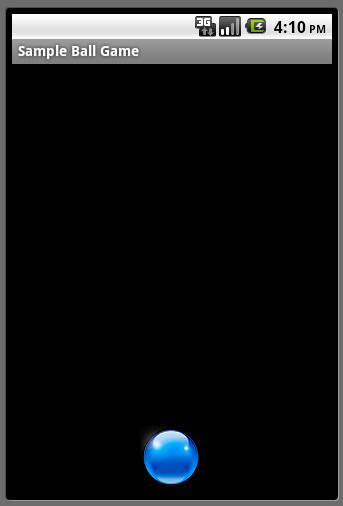
Simple canvas-based Ball game

This is a small project that does this.

"On your phone's screen, you will have a ball lying at the bottom part, in the middle. Once you touch any part of the screen, the ball starts moving in that direction. It continues to move till it hits one of the walls, bounces off the wall, and keeps moving. Depending on the point of touch, the ball will hit the left/right walls a few times, before it eventually escapes out of the view when it crosses the upper boundary."
 Not super fancy stuff or algorithms. You can find the source code here.

Saturday, June 4, 2011

Streaming Radio Stations on Android

Streaming radio stations or audio files hosted on streaming servers on Android is pretty straight-forward. But then, Android has it's limitations. It won't stream just any file or radio station. In this post, I would not be specifying the formats or protocols that Android supports. Rather, this example is just a walk through of how the MediaPlayer class should be used to stream audio files/radio stations.

For an example here, I have used a SHOUTcast radio station. The URL for the source is:
http://shoutcast2.omroep.nl:8104/

The accompanying sample project contains a ProgressBar, two Buttons (for playing and stopping the MediaPlayer).

Before running the example, one should look into the documentation of the MediaPlayer class. A look at the state diagram would perhaps help you clear to understand how it actually works.

To initialize the MediaPlayer, you need a few lines of code. There you go:
MediaPlayer player = new MediaPlayer();
player.setDataSource("http://shoutcast2.omroep.nl:8104/");
Now that the MediaPlayer object is initialized, you are ready to start streaming. Ok, not actually. You will need to issue the MediaPlayer's prepare command. There are 2 variations of this.

  1. prepare(): This is a synchronous call, which is blocked until the MediaPlayer object gets into the prepared state. This is okay if you are trying to play local files that would take the MediaPlayer longer, else your main thread will be blocked.
  2. prepareAsync(): This is, as the name suggests, an asynchronous call. It returns immediately. But, that obvisouly, doesn't mean that the MediaPlayer is prepared yet. You will still have to wait for it to get into the prepared state, but since this method will not block your main thread, you can use this method when you are trying to stream some content from somewhere else. You will get a callback, when the MediaPlayer is ready through onPrepared(MediaPlayer mp) method, and then, the playing can start.
So, for our example, the best choice would be:
player.prepareAsync();
You need to attach a listener to the MediaPlayer to receive the callback when it is prepared. This is the code for that.
player.setOnPreparedListener(new OnPreparedListener(){
            public void onPrepared(MediaPlayer mp) {
                     player.start();
            }
 
});
Once, it goes into the prepared state, you can now start playing. Simple???? Yes, of course. Just to wrap it up, to stop the MediaPlayer, you need to call the stop() method.

There are several other helper methods which lets you query the progress or status of the player. Jump to the docs page and you will find more information on them. You can checkout the source code here.

Project source for the new Eclipse + Android tool chain. Download here.

NOTE: This sample project is tested on Gingerbread(2.3) and should work on Froyo(2.2) and above.

Saturday, April 9, 2011

Using Custom fonts on Android

I had to do this for a project that I am working on, and I felt that it wasn't possible to achieve this. Well, there are several examples on the internet regarding this and nothing seemed to be working for me. So, in this post, we will see how to use custom fonts for your application on Android.

Few things before we start off:
  • Not all fonts are compatible with Android
  • You need to package the ttf files with your apk
  • It's obviously a little bit of extra work
So for this example, we have a TextView and a Button with different fonts. To be able to use your custom font everywhere, ie, on all the TextView and Button widgets in your app, you will have to extend these classes to create your own TextView and Button classes. I have named them as MyTextView and MyButton. And then, I can use these buttons in my layout xml files, with the fully-qualified name of my custom classes.

<?xml version="1.0" encoding="utf-8"?>
<LinearLayout xmlns:android="http://schemas.android.com/apk/res/android"
    android:orientation="vertical" android:layout_width="fill_parent"
    android:layout_height="fill_parent">
    <com.beanie.samples.customfont.MyTextView
        android:layout_marginTop="10dip" android:id="@+id/textView"
        android:layout_width="fill_parent" android:layout_height="wrap_content"
        android:text="@string/hello" android:textSize="20sp"></com.beanie.samples.customfont.MyTextView>

    <com.beanie.samples.customfont.MyButton
        android:layout_marginTop="10dip" android:id="@+id/textView"
        android:layout_width="fill_parent" android:layout_height="wrap_content"
        android:text="@string/hello" android:textSize="20sp"></com.beanie.samples.customfont.MyButton>
</LinearLayout>
In both these classes, we have a method called init() which is called from all the constructors. The method is just 3 line long.
        if (!isInEditMode()) {
                  Typeface tf = Typeface.createFromAsset(getContext().getAssets(), "fonts/ds_digib.ttf");
                  setTypeface(tf);
        }
Simple!!! You might notice that there is an if condition. This is not required, but it does help when you are preparing your layouts on eclipse, and you need to keep checking if everything's fine. This method, isInEditMode() returns true while eclipses tries to render the view from the XML.

This is what the documentation says:
Indicates whether this View is currently in edit mode. A View is usually in edit mode when displayed within a developer tool. For instance, if this View is being drawn by a visual user interface builder, this method should return true. Subclasses should check the return value of this method to provide different behaviors if their normal behavior might interfere with the host environment. For instance: the class spawns a thread in its constructor, the drawing code relies on device-specific features, etc. This method is usually checked in the drawing code of custom widgets.
If you don't put this condition, the layout editor will complain about not being able to set the TypeFace. So, in the layout editor, you will see your TextView and Button widgets with the default font. But, when you run your app on an emulator or a device, you can see the goodness of your custom fonts.

The source code for the sample project can be found here. You can find 3 different fonts (ttf file) in the assets folder to play with.

Monday, April 4, 2011

Inverted Android Button

Nothing complex. Just a few lines of code to invert your button. A horizontal flip of 180 degrees is pretty simple to achieve. If you want it with a specific angle, it might be a bit tricky.

Lets start with a creating a custom button class that extends the android Button class. Name it as InvertedButton.java.

You will need to override it's onDraw() method to rotate the canvas, so that before any drawing is done, you rotate it by 180 degrees. To make the text-alignment perfect, you will also need to do a few calculations.
    @Override
    protected void onDraw(Canvas canvas) {
        int left = getPaddingLeft();
        int top = getPaddingTop();
        int right = getPaddingRight();
        int bottom = getPaddingBottom();
        int width = getWidth() - left - right;
        int height = getHeight() - top - bottom;
       
        int saveCount = canvas.getSaveCount();
        canvas.translate(left + width / 2, top + height / 2);
        canvas.rotate(-180);
        canvas.translate((-width / 2)-left, (-height / 2)-top);
        canvas.restoreToCount(saveCount);
       
        super.onDraw(canvas);

    }
There you go. You can now add this button anywhere in your XML layouts and you will always get an inverted button.
<?xml version="1.0" encoding="utf-8"?>
<LinearLayout xmlns:android="http://schemas.android.com/apk/res/android"
    android:orientation="vertical" android:layout_width="fill_parent"
    android:layout_height="fill_parent">
    <Button android:text="Button" android:id="@+id/button1"
        android:layout_width="wrap_content" android:layout_height="wrap_content"
        android:layout_gravity="center_horizontal|top" android:textStyle="bold"></Button>
    <com.beanie.examples.invertedbutton.InvertedButton
        android:text="Button" android:id="@+id/button2" android:layout_width="wrap_content"
        android:layout_height="wrap_content" android:layout_gravity="center_horizontal|bottom"
        android:textStyle="bold"></com.beanie.examples.invertedbutton.InvertedButton>
</LinearLayout>

You can find the source code here. Happy coding!!!!