Thursday, December 16, 2010

Improved Copy/Paste in Gingerbread

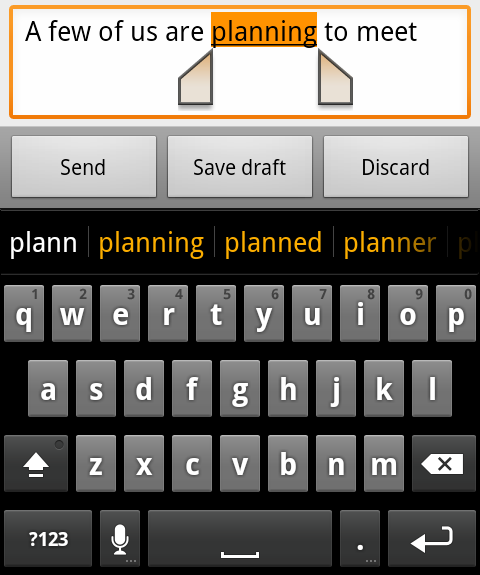
It's really important for the copy/paste feature to work on a mobile even if you don't have a mouse to select text you want to copy. Apple's implementation is nice. Till Froyo, there wasn't a unified concept of copy/paste feature implemented. But, the Gingerbread has actually changed a few things :) . Copying phone numbers from your mails and email addresses from web pages should be trivial and should involve the least amount of button presses. Prior to Gingerbread, this wasn't the case, but Gingerbread has this "New Feature now".

Here's the link where you can find out more about this.

Some images and videos

Official documentation

You need to double-tap on the text before you can bring up the text selection controls. Once you are done with the selection, single tap on the text copies the selected text to the clipboard, and then you can extract the data from the clipboard. This is really nice. Else, you would have to write a bit of extra code to trigger text selection mode first. This copy/paste selector works on an EditText and on the Browser. I haven't tested it further.


Gingerbread Stuff!!!! **It works on the emulator**.

Wednesday, November 17, 2010

Getting animations to work

This is a simple project that will explain how to use animations in android through AnimationDrawable. The documentation was a bit outdated. But you might hit a dead-end if you try to call the animation's start method from within any of the Activity's life-cycle methods.

In this example, there is an ImageView with it's "src" value set to an image. The ImageView's background is set with you own AnimationDrawable, basically an xml in your res/drawable folder. In the activity, the ImageView has a click listener, which creates an AnimationDrawable from the ImageView's background, and just calls the start method of the AnimationDrawable class.

Here is a sample AnimationDrawable described through XML.
<?xml version="1.0" encoding="utf-8"?>
<animation-list xmlns:android="http://schemas.android.com/apk/res/android"
    android:oneshot="false"
>
    <item android:drawable="@drawable/black" android:duration="200" />
    <item android:drawable="@drawable/cyan" android:duration="200" />
    <item android:drawable="@drawable/green" android:duration="200" />
    <item android:drawable="@drawable/magenta" android:duration="200" />
    <item android:drawable="@drawable/navy" android:duration="200" />
    <item android:drawable="@drawable/orange" android:duration="200" />
    <item android:drawable="@drawable/pink" android:duration="200" />
    <item android:drawable="@drawable/white" android:duration="200" />
    <item android:drawable="@drawable/yellow" android:duration="200" />
</animation-list>
And here is the code that gets your animation started.
imageView = (ImageView) findViewById(R.id.ImageButton01);
        imageView.setOnClickListener(new OnClickListener() {

            @Override
            public void onClick(View v) {
                AnimationDrawable animator = (AnimationDrawable) imageView.getBackground();
                imageView.setImageDrawable(null);
                animator.start();
            }
        });
One point to notice is that, you have to remove the ImageView's "src" value, so that the animation is visible, since the animation works by changing the background of the ImageView, else, your animation would be blocked by the ImageView's "src" image.

Once you are done, you can stop the animation, and reset the ImageView's "src" to it's original image.
// Call this method to stop the animation
    public void stopAnimation(){
        AnimationDrawable animator = (AnimationDrawable) imageView.getBackground();
        animator.stop();
        imageView.setImageResource(R.drawable.icon);
    }
 You can find the whole source code for this example here.

Monday, October 25, 2010

Unzip files in Android

You need an app that can unzip files? Android provides the classes that are required for this. Basically you will need to checkout two classes. There are other related classes also which would help you with various other things.
  1. ZipInputStream
  2. ZipEntry
This example shows you how to unzip a zip file through these classes. If you want to create zip files, that's also possible, but we will keep it for later. In this project, there is a zip file, called ZipTest.zip in the assets folder. It's pretty easy to pick up any zip file on your phone through code. For simplicity, I have placed out test file in the assets folder.

The code is simple enough to need any more explanations. I have put comments in the code. So, do check it out and run it. I have logged the steps on the Activity. The output files are not readable yet in this example due to the format of writing that I have done here (Update: As per rekin's comment, this is fixed now). But you get idea about how to unzip those files. You can find the whole working code here.

Note: There's not much error handling code put in place.

Wednesday, October 20, 2010

Android WebView, Javascript and CSS

Using WebViews on Android is pretty interesting. I have come across some situations where I had to use a WebView to display some HTML content. Displaying HTML content is pretty straight-forward. But when it comes to controlling the web view, it gets a little complex. Things like showing alerts, manipulating divs and controlling the activity (closing/finishing). This example shows a few techniques that will get you going with Javascript and CSS with WebView.

1. CSS: Applying CSS is just the same as you would do with normal HTML pages. The sample_page.html in the assets folder refers to the sample_style.css file in the same folder. One thing you might notice is how we get the rounder corners for the divs. This CSS attribute does the trick.
             -webkit-border-radius: 5px;
2. Javascript: To make it simpler, I have used the JQuery library. The mobile version released recently gave some errors. So, I have used the normal library available. The jquery-1.4.2.min.js also resides in the assets folder and is referenced in the sample_page.html.

3. All together: In the sample_page.html I have a header, a body and the controls. The controls have four buttons
      a: JToggle: This toggles the visibility of the body section. This is a pure javascript method call from the html.
      b: NToggle: This also toggles the visibility of the body section. But it does it differently. The javascript calls to the JSInterface.java method, which in turn calls the same Javascript method.
      c. Exit: This button basically closes/exits the app, by calling the JSInterface.java method which is bound to the HomeActivity.java via OnExitAppListener.java
      d. Alert: This shows an alert which is basically an AlertDialog in Android.

Calling a Javascript method from your Java code:
webView.loadUrl("javascript:jsToggle()");

Calling a Java method from Javascript:
window.jsinterface.nativeToggle();
/*
  // Before using the above code, you have to inject the interface object which
  // has a name "jsinterface"
  webView.addJavascriptInterface(jsInterface, "jsinterface");
*/

Controlling the Alerts from Javascript:
The SampleChromeClient.java which extends the WebChromeClient has several methods which provide hooks which allow you to customize their behaviour. For an example, you can override the behaviour of the alert function and do whatever you want. You can show your own dialog with Yes/No buttons and depending on the input, you can send back the result to your Javascript code.
 @Override
 public boolean onJsAlert(WebView view, String url, String message, JsResult result)
 {
     url = "Sample App Alert";
     return super.onJsAlert(view, url, message, result);
 }

You can checkout the whole source code here. It's ready to run. Let me know if you have any issues.

Friday, October 15, 2010

More security for your Android

Android has been criticized by a few of not having stricter security policies, on which a user could count on if his device is lost or stolen. Since more and more data, both personal and confidential are finding there way into our smart phones, we do need a more secure system to ensure that our data never fall into the wrong hands. Well, with Android 2.2(Froyo), your Android phones can be more secure by using the new Device Administration API.

What could this API do?
Using these APIs, the IT-Admins can install a Admin App, which enforces system wide security policies.

- Enable Passwords (Only lock screen as of now)
- Set minimum password length
- Alphanumeric password required
- Maximum password attempts
- Maximum inactivity time lock
- Lock device immediately
- Wipe the device data (to factory settings) (Remote/Local)

The key to all these features are that you have to have that admin app installed and activated as well. Also, you can have multiple admin apps that enforce multiple security policies. In situations of clash, the most strict policy will be enforced. This admin app controls how your device behaves in different situations. You can set parameters as to when and under what conditions your device should be wiped out. Say, after 20 failed password attempts, you want to wipe out the data to factory settings, the Admin app can do this using the Device Administration API.

For more information and samples on how to start with this API, visit the official documentation here.

With more and more features being packed into Android, now it is probably targeting the enterprises. Not having a way of enforcing such policies have indeed been a setback for Android to entice the Business users, but now, I can hear them come running. :D