Monday, September 7, 2009

SMS Blocking in Android

Recently, I tried to develop an app that would block sms from certain numbers that you can choose. It seems that you cannot completely block the incoming sms. These were the problems that I faced while working with this app.

1. There are no APIs supplied, that handles the SMS inbox (I mean, no content providersm which can be directly queried to fetch records from the sms table). However, you have a workaround of finding the tables where the sms is stored, and then querying and updating that table. Well, there is actually a content provider, that exposes this table to other applications, but it is not documented anywhere. So, I have to hardcode the column values. This is potentially dangerous, if in the next Donut release, Google changes the column names, my application would fall apart.

2. On receiving of an SMS, I have 2 things to do. Remove the SMS from the sms table, and disable the notification. Deleting the sms from the table was pretty easy, but I couldn't find a way to remove the Notification. Perhaps, there is no way that we can disable this notification. One workaround might be, to temporarily change the Notification settings, the moment you sense an incoming message from a blocked number. And, after you delete the message from the sms table, you just turn on the notification. I haven't worked on this, but this might just work.

3. If the Messaging application is already open, and an sms arrives, weird things start to happen. I can see the blocked sms being deleted, and the list of sms gets updated. But the next message in the list is marked as "Unread". Probably, this is done by the Notification, I don't know.

4. SMS broadcast, is definitely, an un-ordered one. So, the easiest way, that could have worked, would have been just to abort the broadcast. But in this case, you don't have this option. so, once you recieve this broadcast, you have to manually go and delete the message, by matching the incoming number, timestamp etc. Timestamp method isn't foolproof. Because, the timestamp you receive, is the timestamp of the broadcast, and not the time when the sms is written into the DB. So they wont match. You should pick up the incoming number, and check for the timestamp within a range of about 1 seconds. This should give you the sms that you need to delete.

5. There's another problem. When you recieve the broadcast, the system wont write the sms into the table, before it is sure that all the broadcast receivers have done their work. So, it waits for some time, and then writes the sms into the table. Before this, if you try to delete the sms, obviously, you would not find it in the table. So, make your code sleep for about a second, and then go and delete the SMS. That should do it. But, the most important problem still persists. THE NOTIFICATION. I guess, it can't be removed.
Saturday, August 22, 2009

Android : Sliding Drawer Example

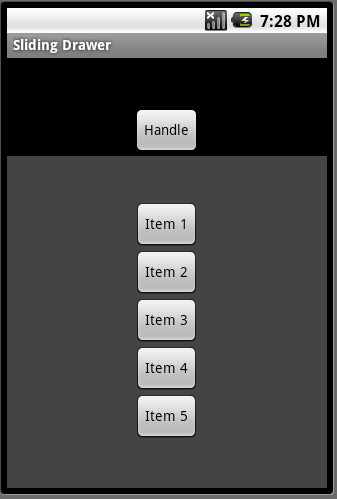
If you have lot’s of stuff to put on your screen for a single activity, you should probably go for the SlidingDrawer widget. It is very simple to use, and looks cute. Here are the steps that you need to do for bringing up the sliding drawer on your activity.

Here is a sample application displaying how to code up a sliding drawer. It's pretty simple, and I don't think it needs more explanation.


<SlidingDrawer android:id="@+id/slidingDrawer1"
        android:layout_width="fill_parent" android:layout_height="fill_parent"
        android:topOffset="50dip" android:handle="@+id/handle"
        android:content="@+id/content">

The sample project sets up a Sliding Drawer at the bottom of the screen. You can change it to appear at place of the screen. You just need to change/adjust some properties of the SlidingDrawer.
  • The orientation property can be set to either "horizontal" and "vertical"
  • There are properties like "topOffset", "bottonOffset", "rightOffset" and "leftOffset" with which you can position your drawer anywhere.
  • With a few more changes, you can attach backgrounds/images to the whole SlidingDrawer. For example, I have added a color background to the content of the Sliding Drawer.
Update: Here is the link to the source code which shows how to cook up a simple sliding drawer.

Thursday, August 13, 2009

FileWriter in Android

This is a pretty handy API that you can use to write a string of information to a file on the device. It doesn’t need a StreamWriter or BufferedWriter or FileOutputStream. It is short and sweet.
            FileWriter fWriter;
            try{
                 fWriter = new FileWriter(“\sdcard\filename.txt”);
                 fWriter.write(yourString);
                 fWriter.flush();
                 fWriter.close();
             }catch(Exception e){
                      e.printStackTrace();
             }
The flush() and close() calls are important here, and also make sure that the “sdcard” is mounted. Else, you can use a path such as “data\data\com\yourpackage\filename.txt” which would create a file in the data directory of your package.

Scrollview in Android

I never noticed, or realised how an application’s UI would render when the orientation changed, since most of the time I tested my apps on the emulator. But one fine day, when a friend of mine walked in and asked to change the orientation, I shocked to see that the layouts didn’t fit in the landscape view.
Well, the solution!!!
Wrap your layouts in a parent ScrollView, so that, when the orientation changes, you will be able to at-least scroll and view the whole layout. How the UI looks, is however a different concern.

Relative Layouts vs Linear Layouts

From the very first day, I hated Relative Layouts. I struggled with layouts in general during my initial days till I figured out that Linear Layouts can create any kind of complex layout you need. By using only the Linear Layouts, you can create whatever you want. I had always wondered what was the purpose of the other available layouts.
I was a fan of the Linear Layouts till the day I hit the dead end. With SDK 1.5, pressing for the limit up to which your view hierarchy can be deep, problems started with my existing apps. I was able to remove the errors by removing a layout or two. And then, there was a case, where, I couldn’t remove a level. I was hitting the StackOverflow exception all the time. Frustrated, I posted my query to Google Groups, and guess what, Romain Guy responded, asking me to remove or simplify my view hierarchy. Well, if I were to listen to him, it would mean converting some Linear Layouts to Relative Layouts. And since I didn’t understand Relative Layouts then, I though it was a big big ask. But I tried, and guess what, now my UI is faster, simpler and I don’t get that StackOverflow exception.
I have now realized that though it is easy to use LinearLayouts, but RelativeLayouts not only make your UI load faster, but also is easier to render (at least for me). I have changed all my Linear Layouts to Relative ones, wherever possible.
I also watched the Google I/O videos that gave me a lot of information regarding how to code for Android platform. One of them I would like to mention in my next blog would be about the ListView, the most widely used widget, and i guess, the most wrongly used as well.
Keep droiding….